S3 Programmatic access with AWS-CLI
S3
Amazon S3 (Simple Storage Service) is a scalable object storage service that Amazon Web Services (AWS) provides.
It allows you to store and retrieve large amounts of data in a secure and highly available manner.
S3 is commonly used for various purposes, including backup and restore, data archiving, content distribution, and hosting static websites.
Here’s the link to the official documentation of S3.
Features of Amazon S3
1.Storage classes
S3 offers different storage classes to optimize cost and performance based on your data access patterns. The available classes include Standard, Intelligent-Tiering, Standard-IA (Infrequent Access), One Zone-IA, Glacier, and Glacier Deep Archive.
2.Storage management
Amazon S3 has storage management features that you can use to manage costs, meet regulatory requirements, reduce latency, and save multiple distinct copies of your data for compliance requirements.
Lifecycle management — You can use lifecycle management to automatically move your data to different storage classes as it ages. This can help you save money on storage costs.
Object lock — You can use object lock to prevent your data from being deleted or overwritten for a specified period. This can help you meet regulatory requirements.
Access control — You can use access control to control who can access your data. This can help you protect your data from unauthorized access.
Replication — You can replicate your data to multiple regions to improve availability and reduce latency.
Data backup — You can use Amazon S3 to back up your data to the cloud. This can help you protect your data from data loss.
3.Access management and security
S3 offers various mechanisms to control access to your buckets and objects. Access Control Lists (ACLs) and Bucket Policies can define granular permissions for different users and applications.
By default, S3 buckets and the objects in them are private.
4.Data Processing
To transform data and trigger workflows to automate a variety of other processing activities at scale, you can use the features like S3 Object Lambda and Event Notifications.
5.Storage logging and monitoring
Amazon S3 provides logging and monitoring tools that you can use to monitor and control how your Amazon S3 resources are being used.
6.Analytics and insights
Amazon S3 offers features to help you gain visibility into your storage usage, which empowers you to better understand, analyze, and optimize your storage at scale.
7.Strong consistency
Amazon S3 provides strong read-after-write consistency for PUT and DELETE requests of objects in your Amazon S3 bucket in all AWS Regions.
Concepts in S3
Buckets: S3 organizes data into containers called buckets. Each bucket has a globally unique name and serves as a logical container for objects.
Objects: Objects are the fundamental entities stored in S3. They consist of the data you want to store and associated metadata.
Keys: Keys are unique identifiers for objects within a bucket. They represent the object’s path and can include prefixes and subdirectories to organize objects within a bucket.
S3 Versioning: S3 supports versioning, which enables you to store multiple versions of an object. This feature helps in tracking changes and recovering from accidental deletions or modifications.
Version ID: In Amazon S3, when versioning is enabled for a bucket, each object can have multiple versions. Each version of an object is assigned a unique identifier called a Version ID. The Version ID is a string that uniquely identifies a specific version of an object within a bucket.
Bucket policy: A bucket policy in Amazon S3 is a set of rules that define the permissions and access controls for a specific S3 bucket. It allows you to manage access to your S3 bucket at a more granular level than the permissions granted by IAM (Identity and Access Management) policies.
S3 Access Points: S3 Access Points in Amazon S3 provide a way to easily manage access to your S3 buckets. Access points act as unique hostnames and entry points for applications to interact with specific buckets or prefixes within a bucket. Here are some key points about S3 Access Points:
Access control lists (ACLs): ACLs (Access Control Lists) in Amazon S3 are a legacy method of managing access control for objects within S3 buckets. While bucket policies and IAM policies are the recommended methods for access control in S3, ACLs can still be used for fine-grained control in specific scenarios.
Regions: S3 is available in different geographic regions worldwide. When you create a bucket, you select the region where it will be stored. Each region operates independently and provides data durability and low latency within its region.
You can access Amazon S3 and its features only in the AWS Regions that are enabled for your account.
How Amazon S3 works?
You create a bucket. A bucket is like a folder that holds your data.
You upload your data to the bucket. You can upload files of any size, and you can even upload folders and subfolders.
You can access your data from anywhere. You can use the Amazon S3 website, the AWS Command-Line Interface (CLI), or any other application that supports Amazon S3.
Today'z Task 01 : -
Launch an EC2 instance using the AWS Management Console and connect to it using Secure Shell (SSH).
Create an S3 bucket and upload a file to it using the AWS Management Console.
Access the file from the EC2 instance using the AWS Command Line Interface (AWS CLI).
Create a EC2 instance and SSH it
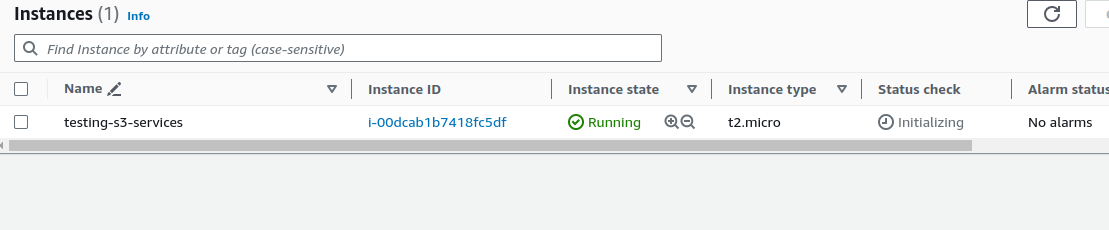
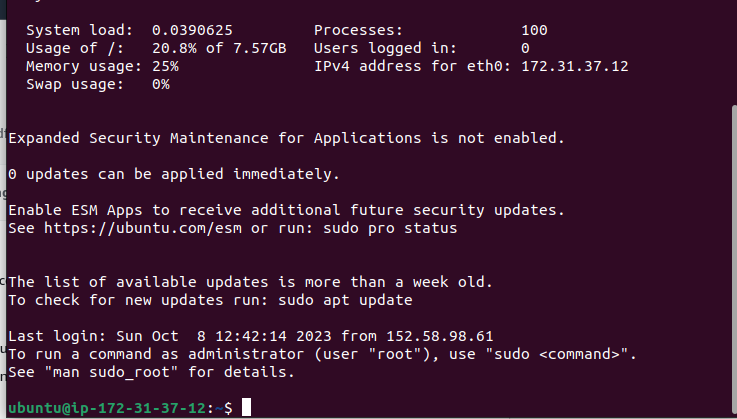
now create a S3 bucket
go to S3 bucket console and click on create bucket
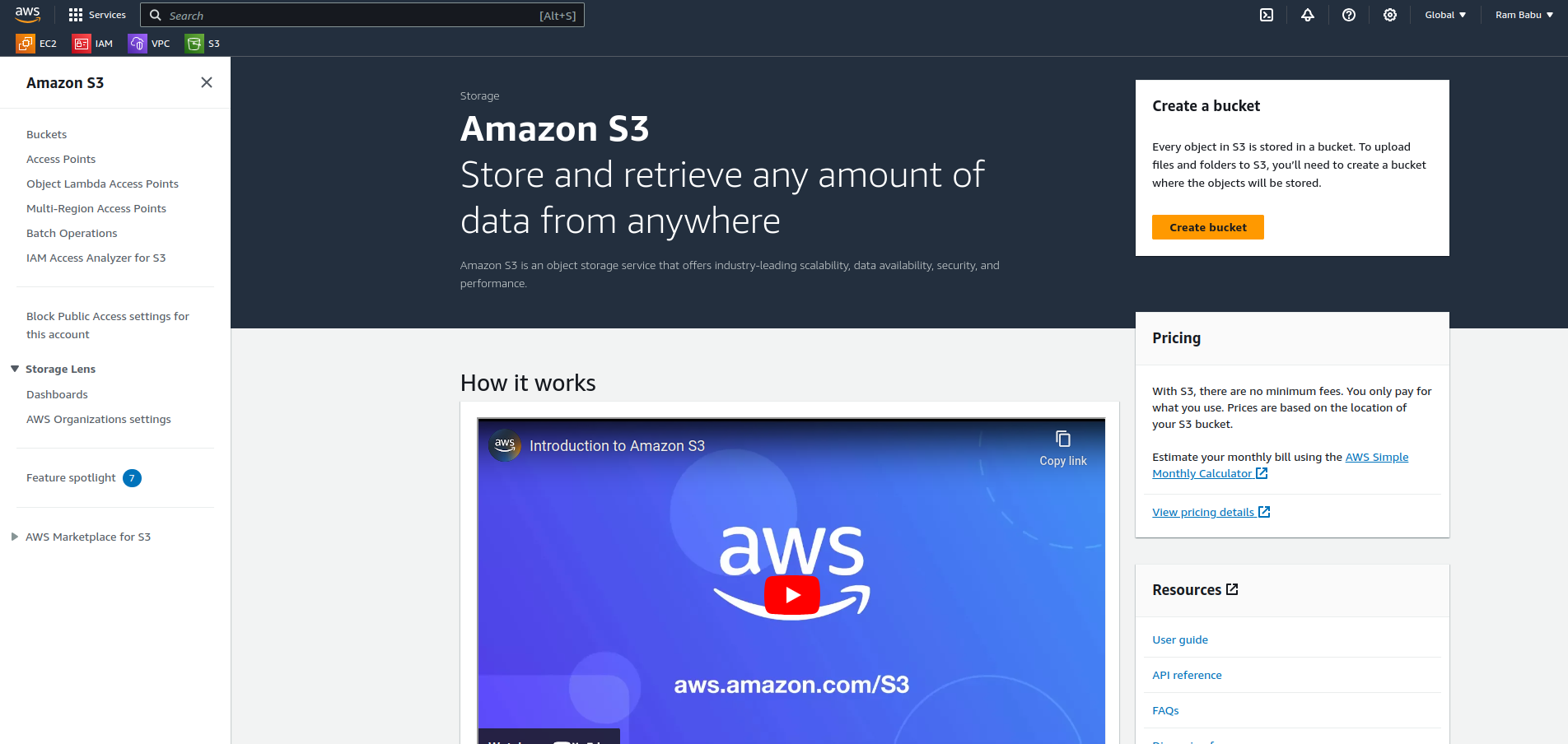
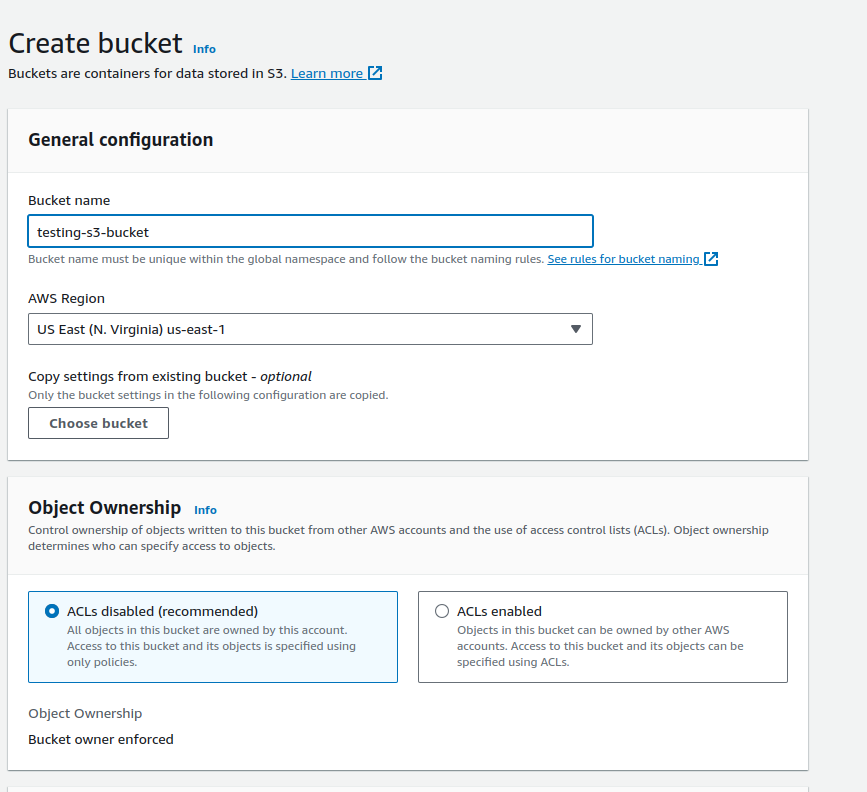
Let the other options be the default and click on Create
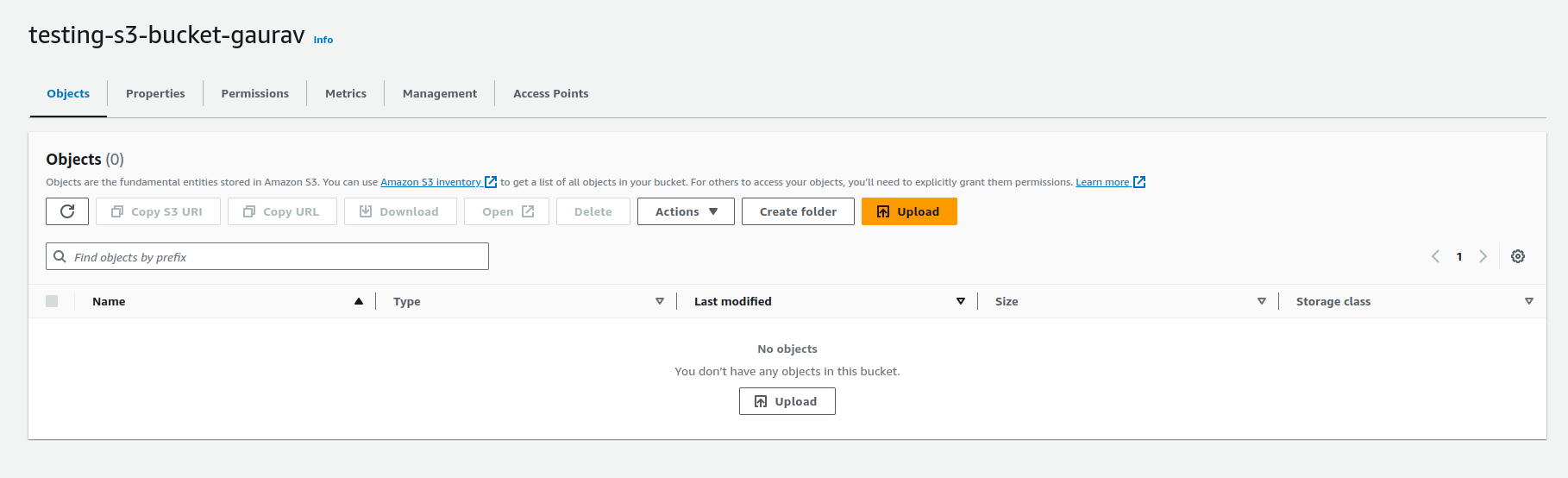
click on upload and upload the file from your machine...
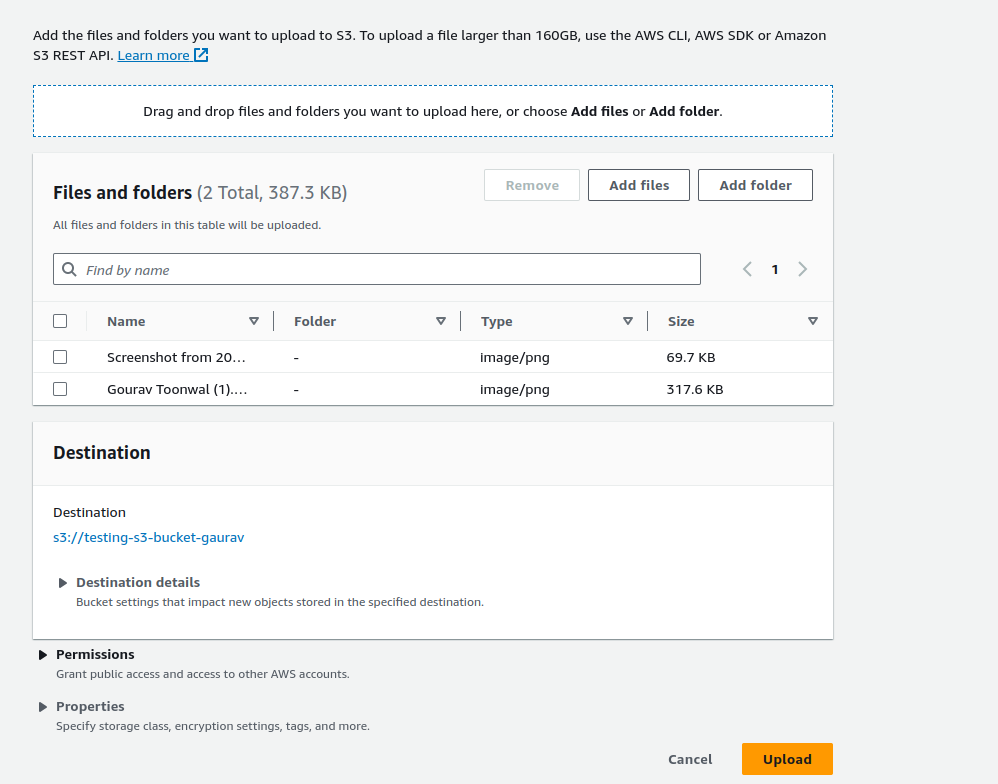
upload the file you want and leave the other configuration by default and explore them once , click on upload
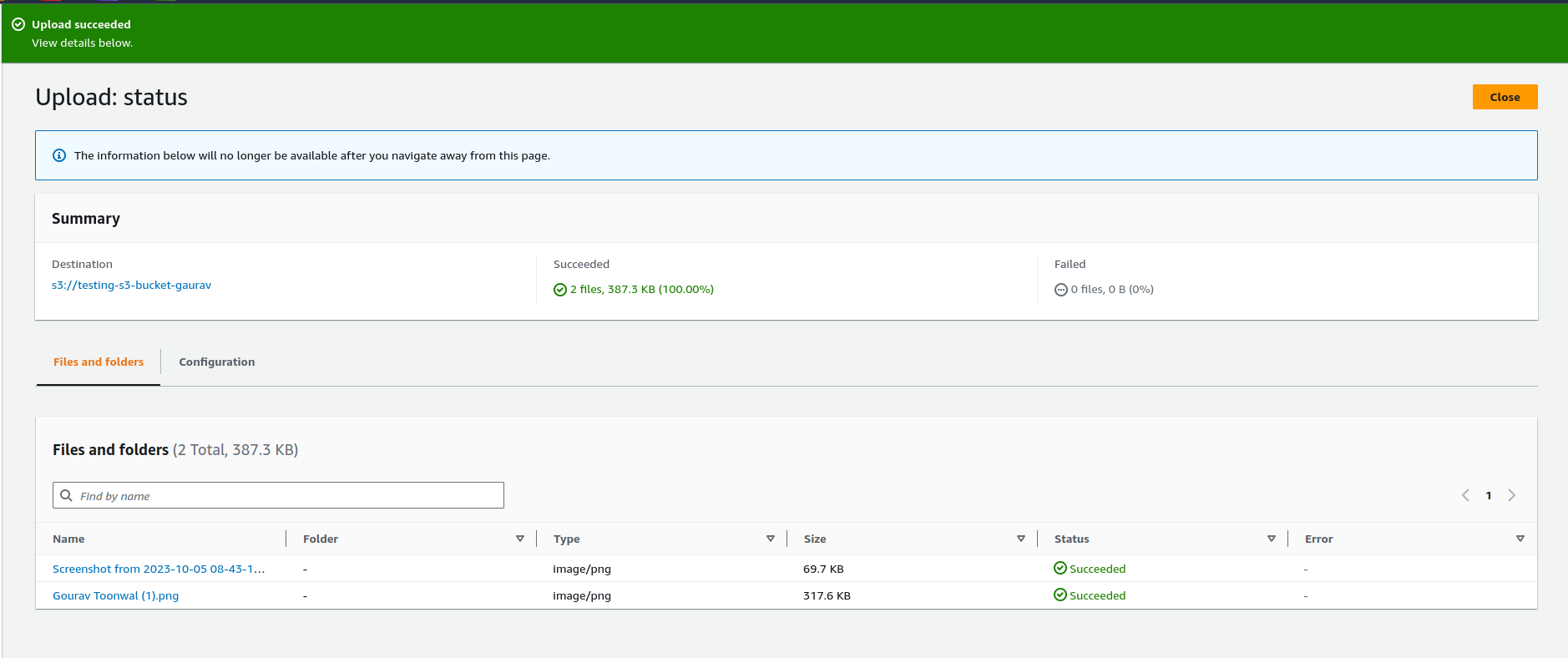
You can see that the File upload was successful.
now for accessing this with AWS CLI you need to configure , here is the previous blog follow this to Install AWS CLI and configure the CLI with credentials.
once to configure follow this step
aws s3 ls - This command lists all of the S3 buckets in your AWS account.
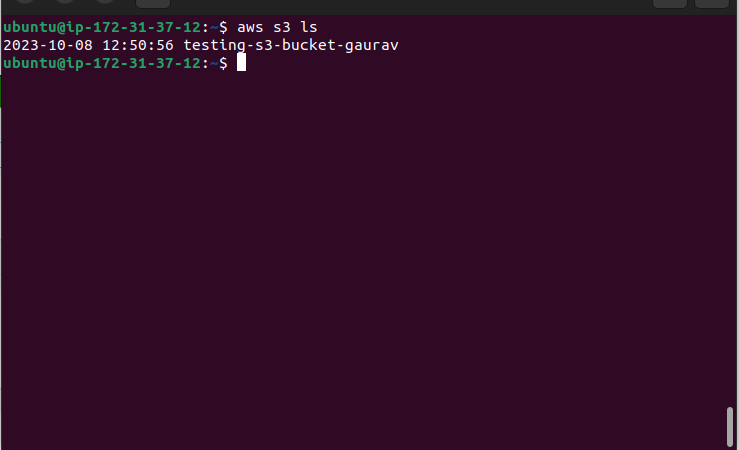
- Access the file from the EC2 instance using the AWS Command Line Interface (AWS CLI).
Here are some commonly used AWS CLI commands for Amazon S3:
aws s3 ls- This command lists all of the S3 buckets in your AWS account.
aws s3 mb s3://bucket-name - This command creates a new S3 bucket with the specified name.
aws s3 rb s3://bucket-name - This command deletes the specified S3 bucket.
aws s3 cp file.txt s3://bucket-name - This command uploads a file to an S3 bucket.
aws s3 cp s3://bucket-name/file.txt . - This command downloads a file from an S3 bucket to your local file system.
aws s3 sync local-folder s3://bucket-name - This command syncs the contents of a local folder with an S3 bucket.
aws s3 ls s3://bucket-name - This command lists the objects in an S3 bucket.
aws s3 rm s3://bucket-name/file.txt - This command deletes an object from an S3 bucket.
aws s3 presign s3://bucket-name/file.txt - This command generates a pre-signed URL for an S3 object, which can be used to grant temporary access to the object.
aws s3api list-buckets - This command retrieves a list of all S3 buckets in your AWS account, using the S3 API.
Let’s create a file in the instance and upload it to the S3 using CLI.
echo "This file shows that the ec 2 has successfully uploaded the file to the s3 bucket" > demo.txt
ls
cat demo.txt
aws s3 cp demo.txt s3://testing-s3-bucket-gaurav
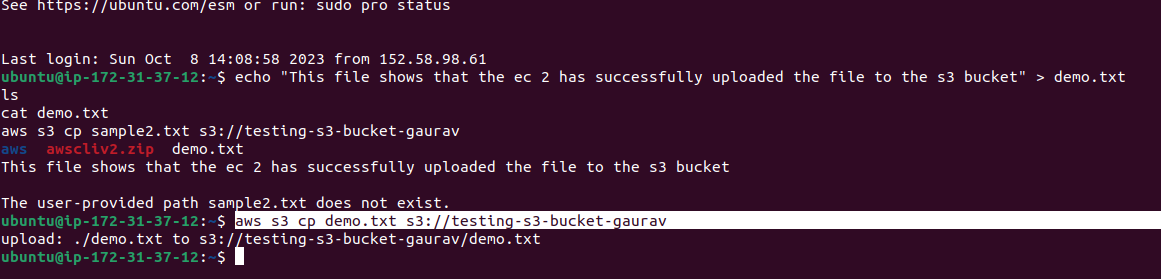
now confirm that it is uploaded to s3 bucket as a object
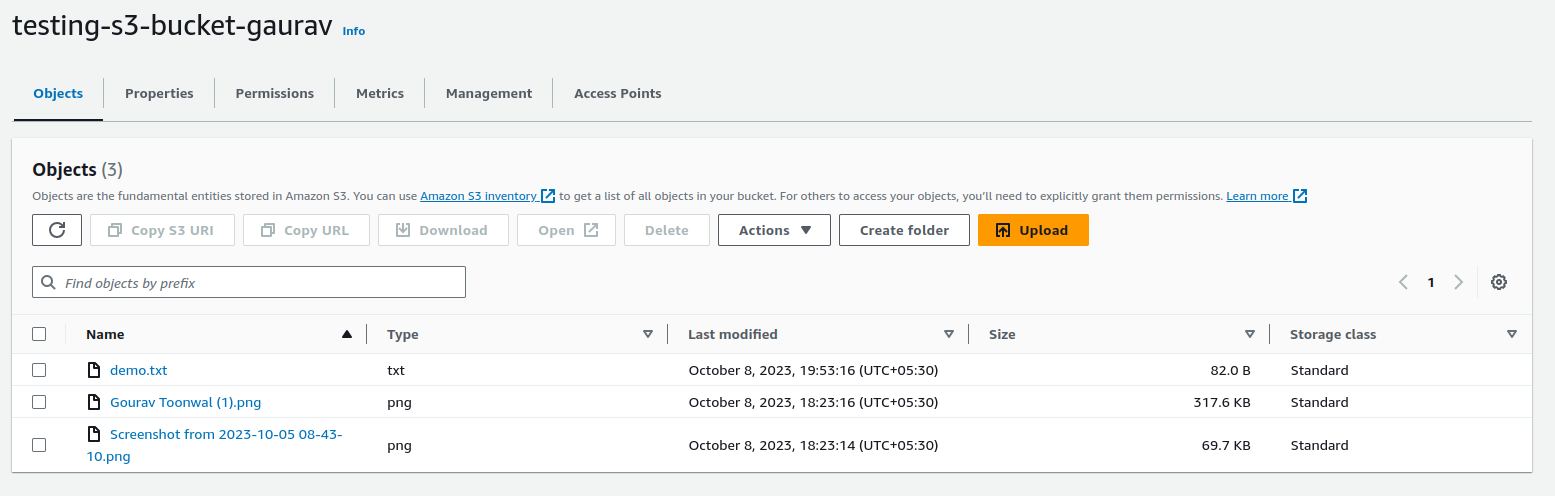
so file is successfully uploaded...
Task 02:
Create a snapshot of the EC2 instance and use it to launch a new EC2 instance. Download a file from the S3 bucket using the AWS CLI. Verify that the contents of the file are the same on both EC2 instances.
now first create the snapshot of the current ec2 instance
go to ec2 dashboard and click on snapshot and click on create snapshot
In Amazon EC2, you can create a snapshot of an EBS (Elastic Block Store) volume to create a point-in-time copy of the data stored on the volume. This snapshot can be used to back up data, migrate volumes between regions, or create new volumes from the snapshot.
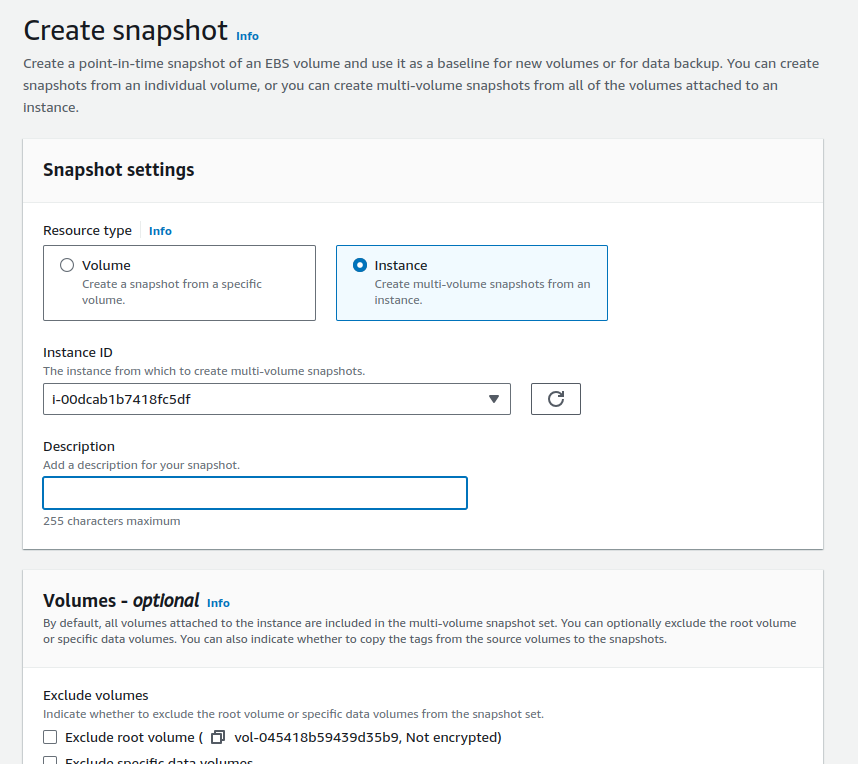
now click on create on "Create Snapshot"
after this click on create image from the snapshot...

configure the image..
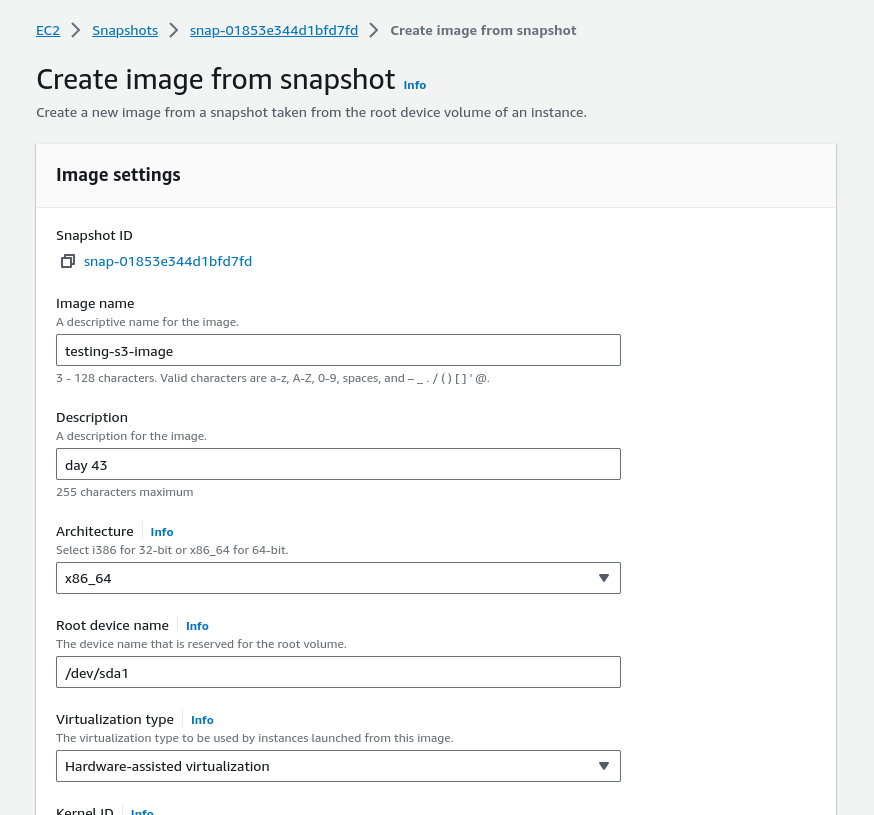
click on "Create Image".
once the image is created to go AMI (Amazon Machine Images)

selected the created image and click on launch instance from AMI

name your instance and click on create instance
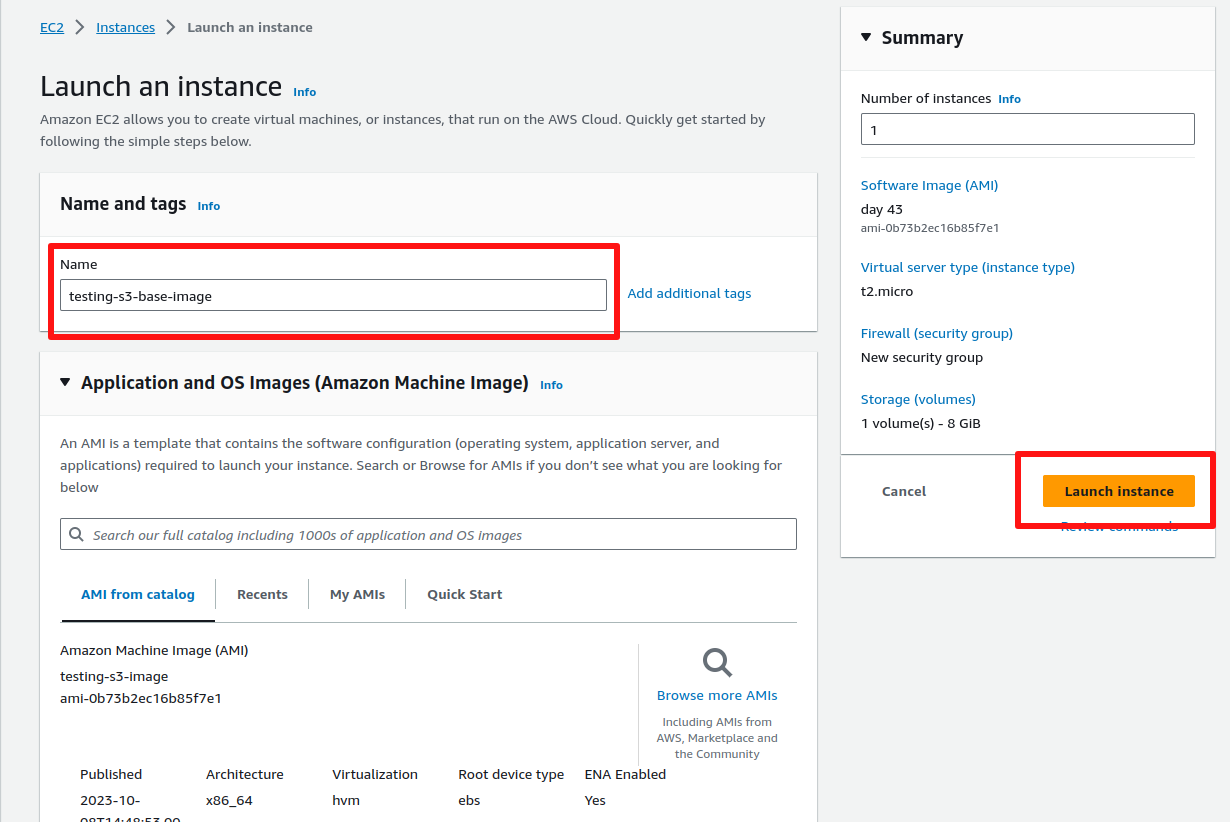
AMI will auto-reflect...
check you instance dashboard a instance in created , connect this instance

after connecting to the instance configure aws cli with a new access key and then check that aws s3 is working or not
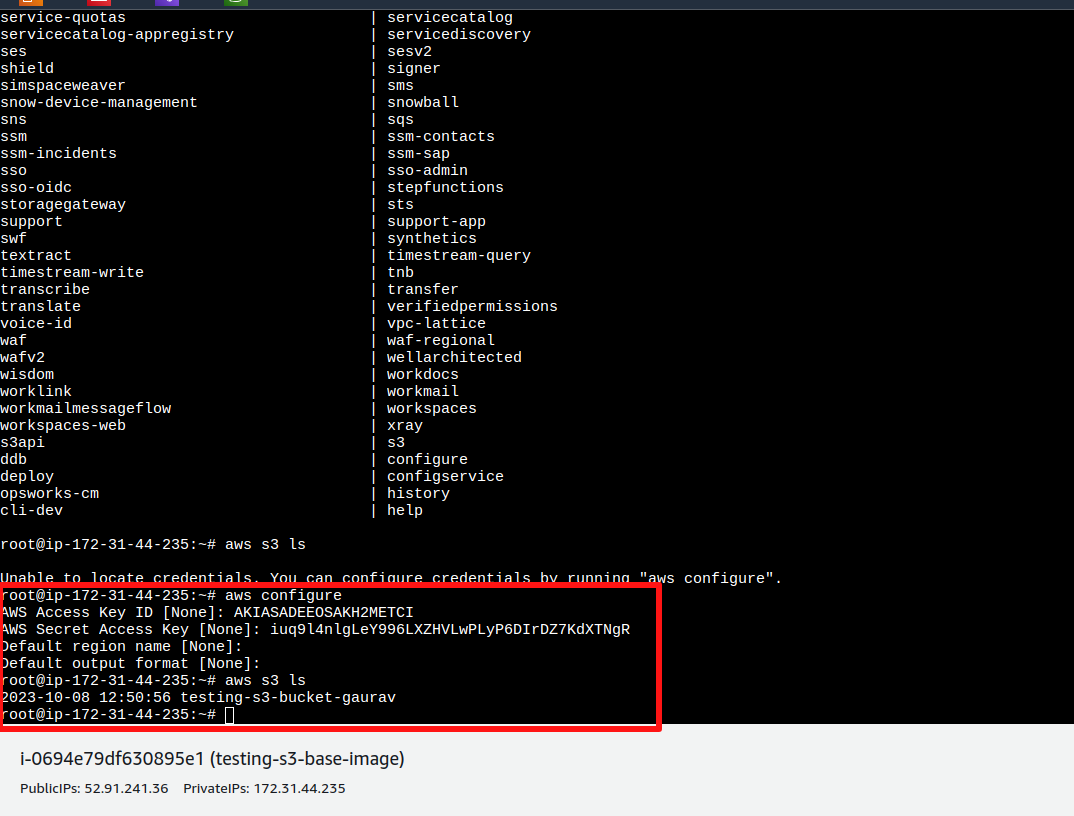
woooohoooooo..........we have successfully created the s3 bucket and configured it with AWS CLI
If you've enjoyed this article and want to stay updated on the latest in the tech world, don't forget to connect with me on GOURAV TOONWAL . Let's keep the conversation going and explore the exciting world of technology together. Follow for more insights, discussions, and tech updates.
thanks for your support...
spread love.......helping community.......


