AWS Hands On
hey folks, as you know we have been doing blogs on AWS for a couple of days and we have gained some intermediate-level knowledge, now it's time to do some practice, so here is today's task we are going to do but this blog is going to be concise as this task are almost repetitive. If you found yourself stuck somewhere please let me know or you can follow previous blogs
Today'z Task
Task 01 :
Launch an EC2 instance using the AWS Management Console and connect to it using SSH.
Install a web server on the EC2 instance and deploy a simple web application.
Monitor the EC2 instance using Amazon CloudWatch and troubleshoot any issues that arise.
Let do this in a sequence
Launch an EC2 instance using the AWS Management Console and connect to it using SSH.
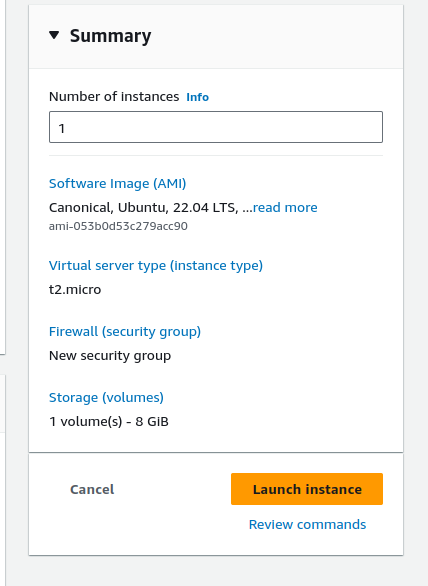
SSH successfully
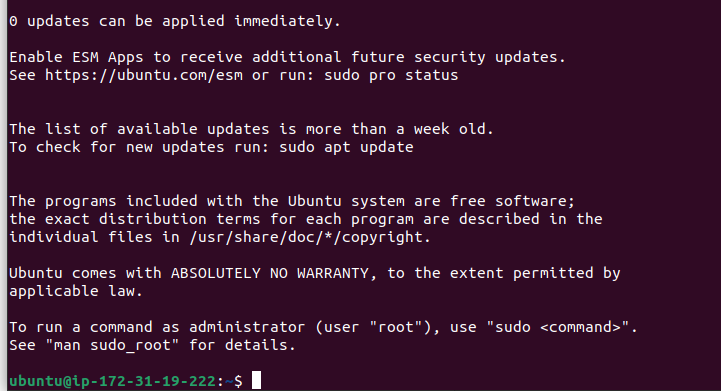
Install a web server on the EC2 instance and deploy a simple web application.
we are going to install apache server , but first need to update the system
Let us install an Apache web server, using:
sudo apt-get update
sudo apt-get install apache2 -y
## verify the install by
service apache2 status
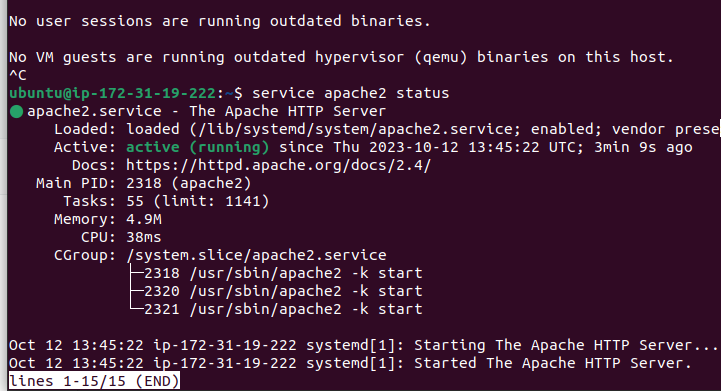
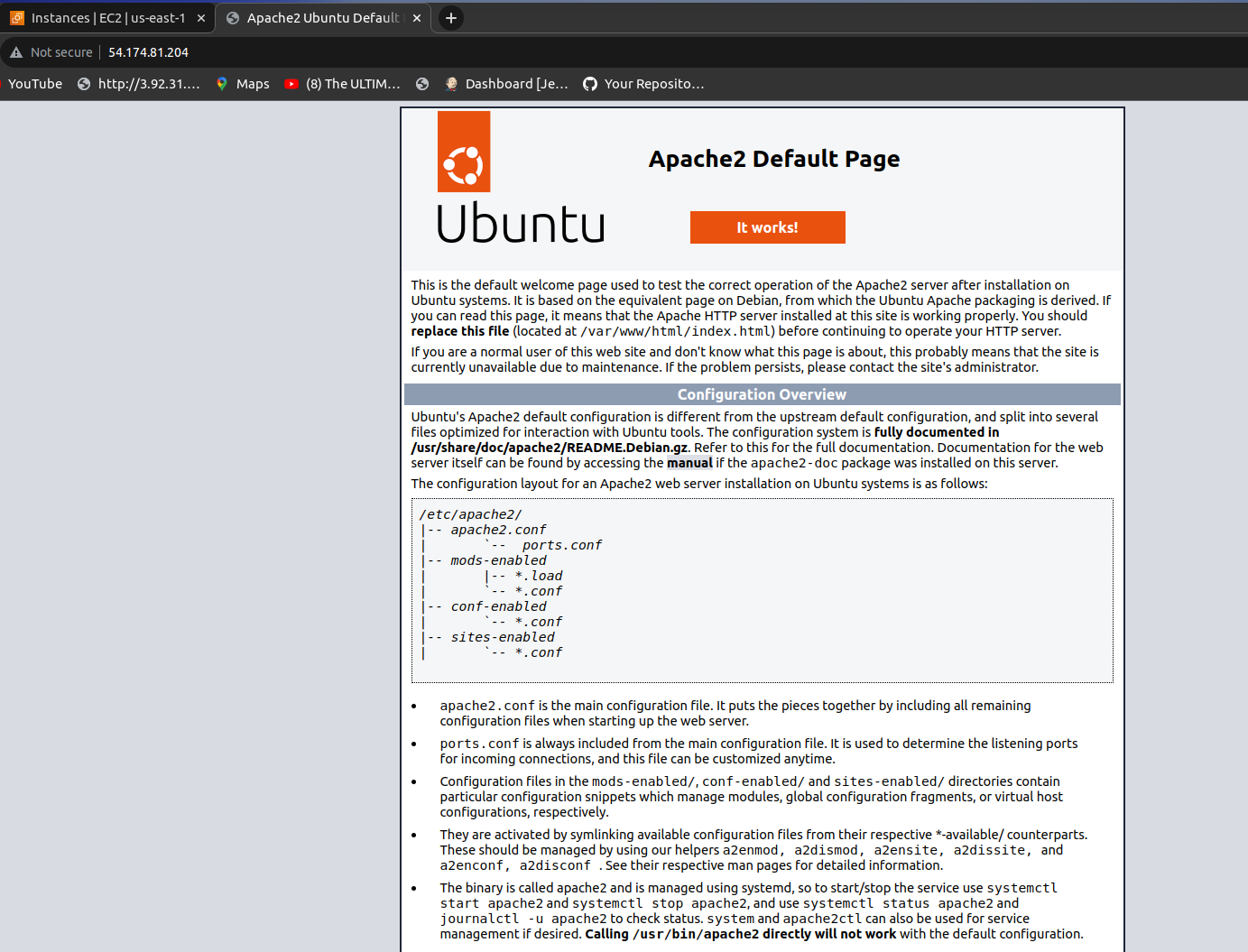
copy the instance IP address and run it on the browser , make sure you have allowed Http protocol in security group.
installed the apache2 server successfully
Monitor the EC2 instance using Amazon CloudWatch and troubleshoot any issues that arise
In your EC2 Console > Select the Instance you want to monitor > Go to the Monitoring Tab > Click on Manage Detailed Monitoring
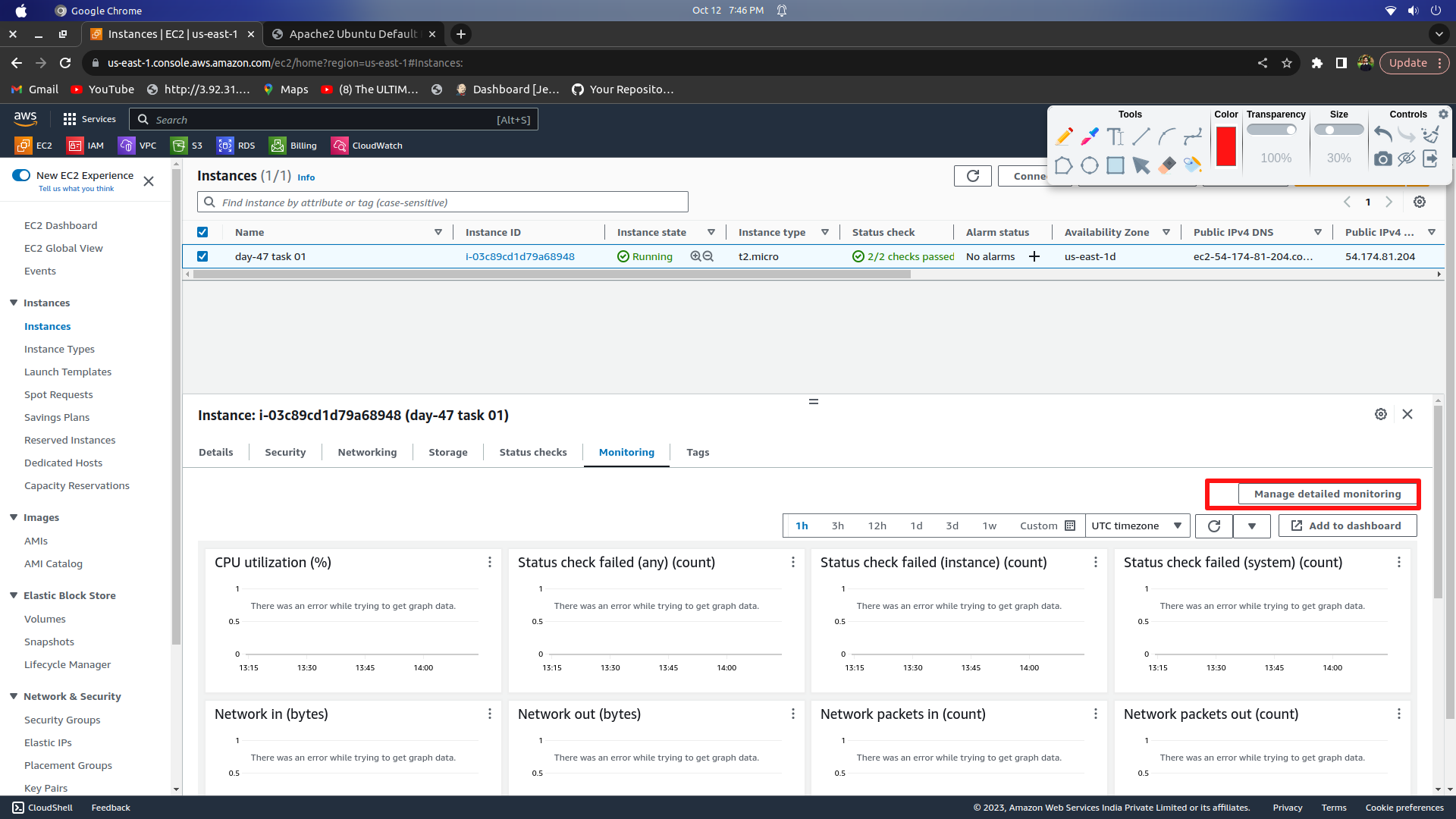
.Enable the Detailed Monitoring in the pop-up and click on Confirm
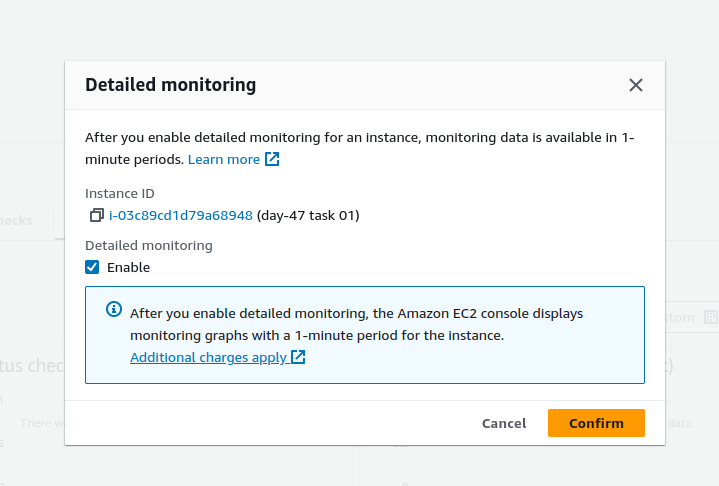
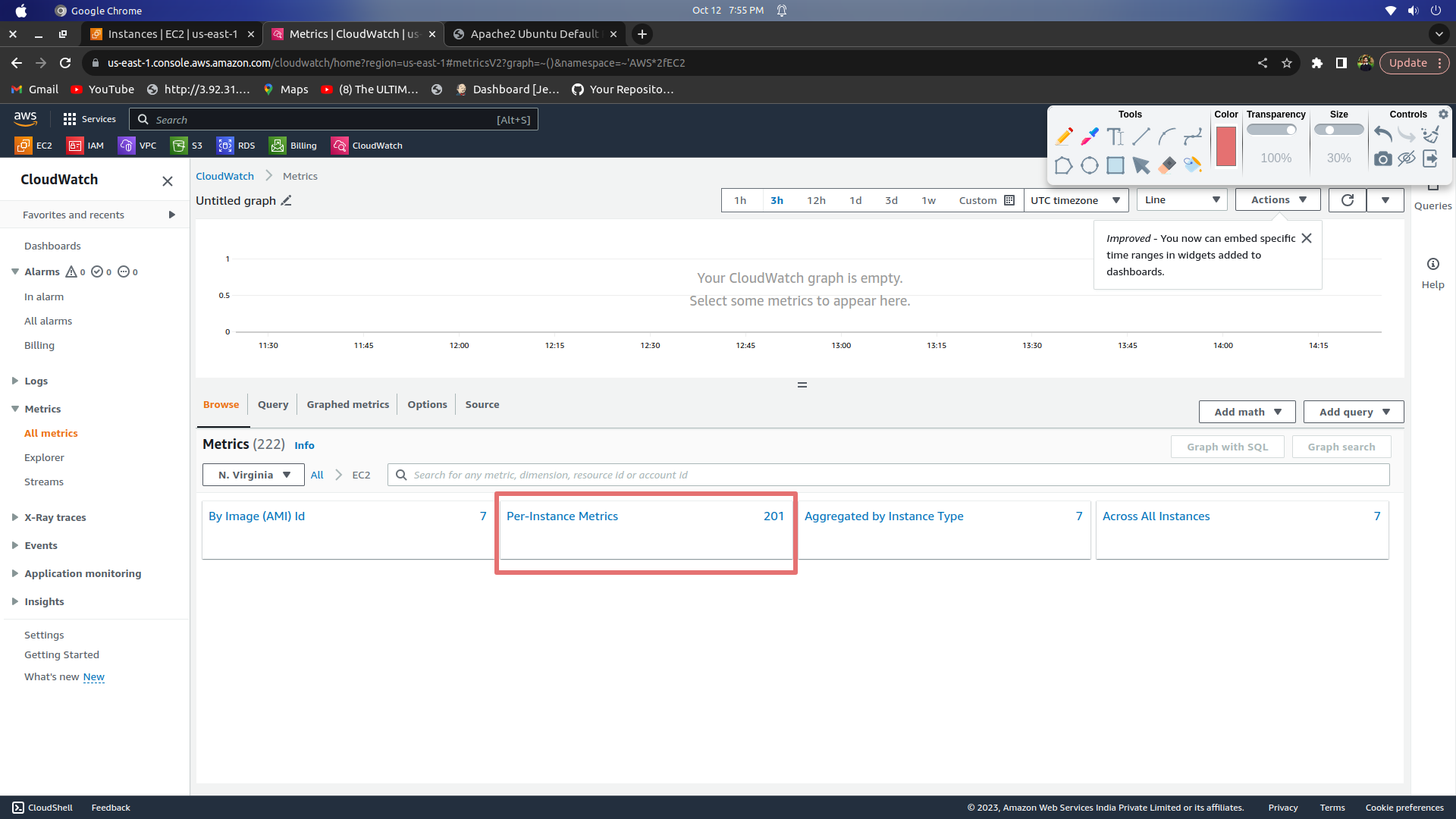
Once done, Navigate to CloudaWatch > Metrics > All Metrics > Select EC2
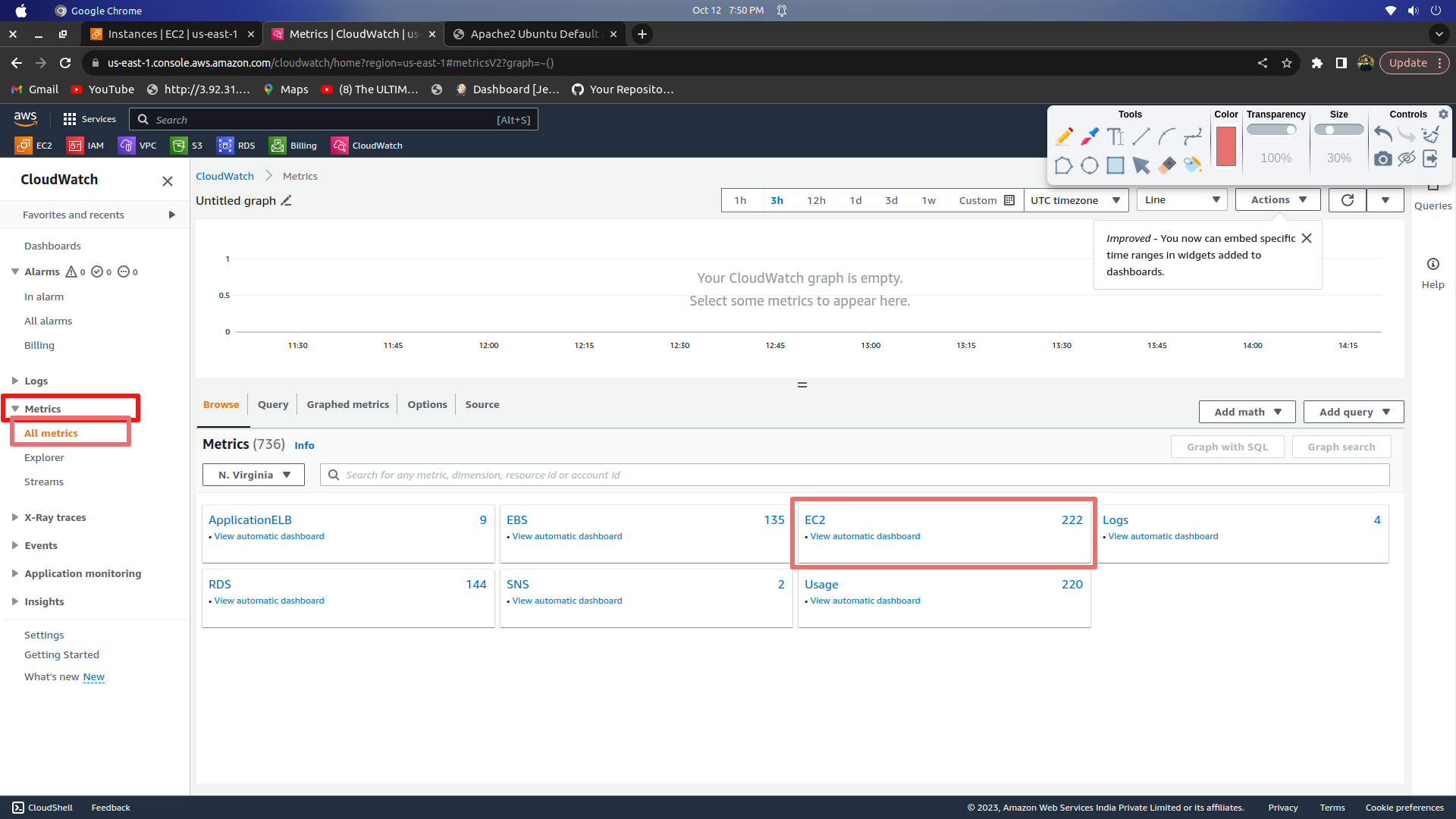
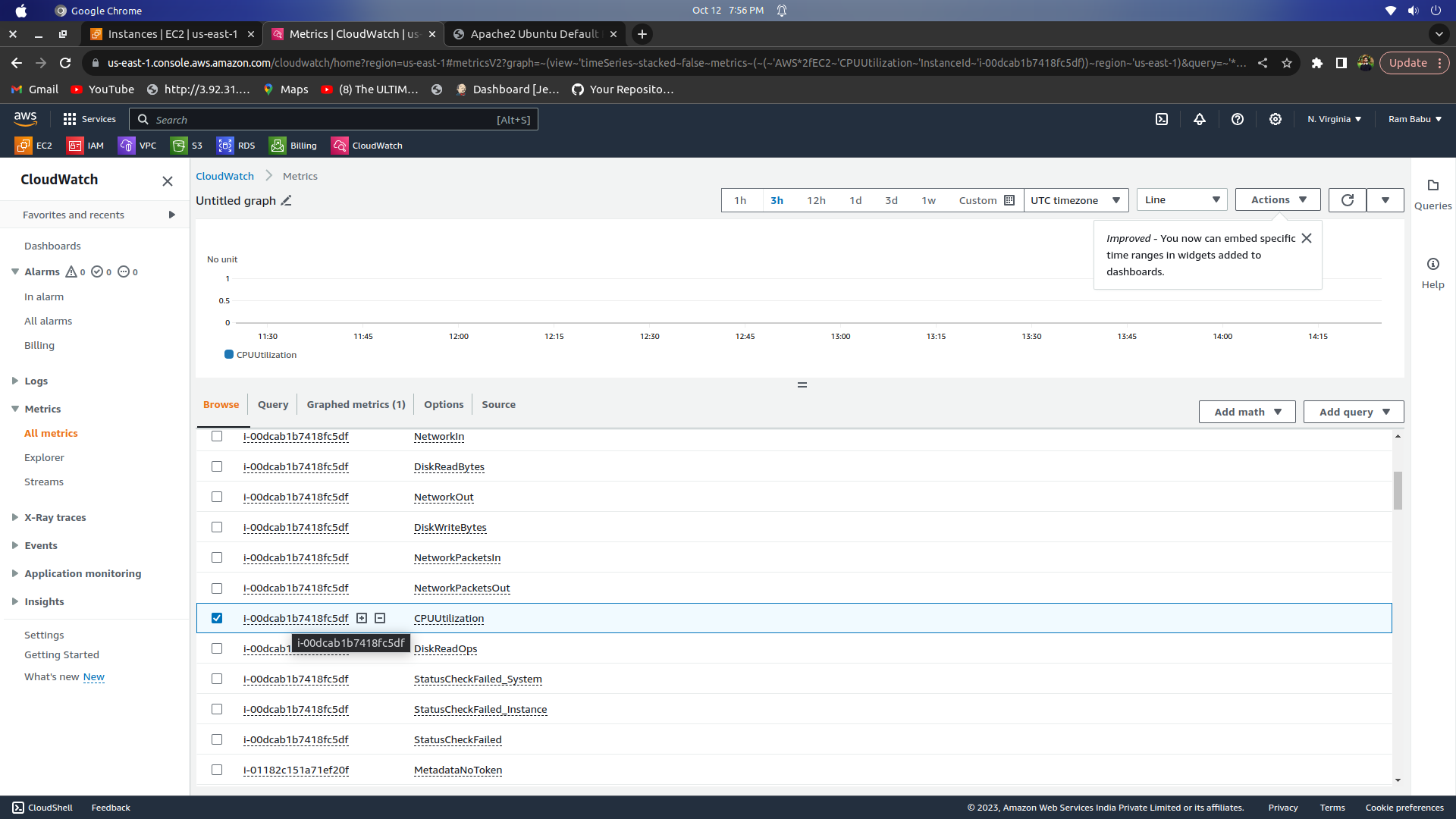
Click on Per-Instance Metrics > And select the Metrics you want to monitor > I am selecting CPU Utilization
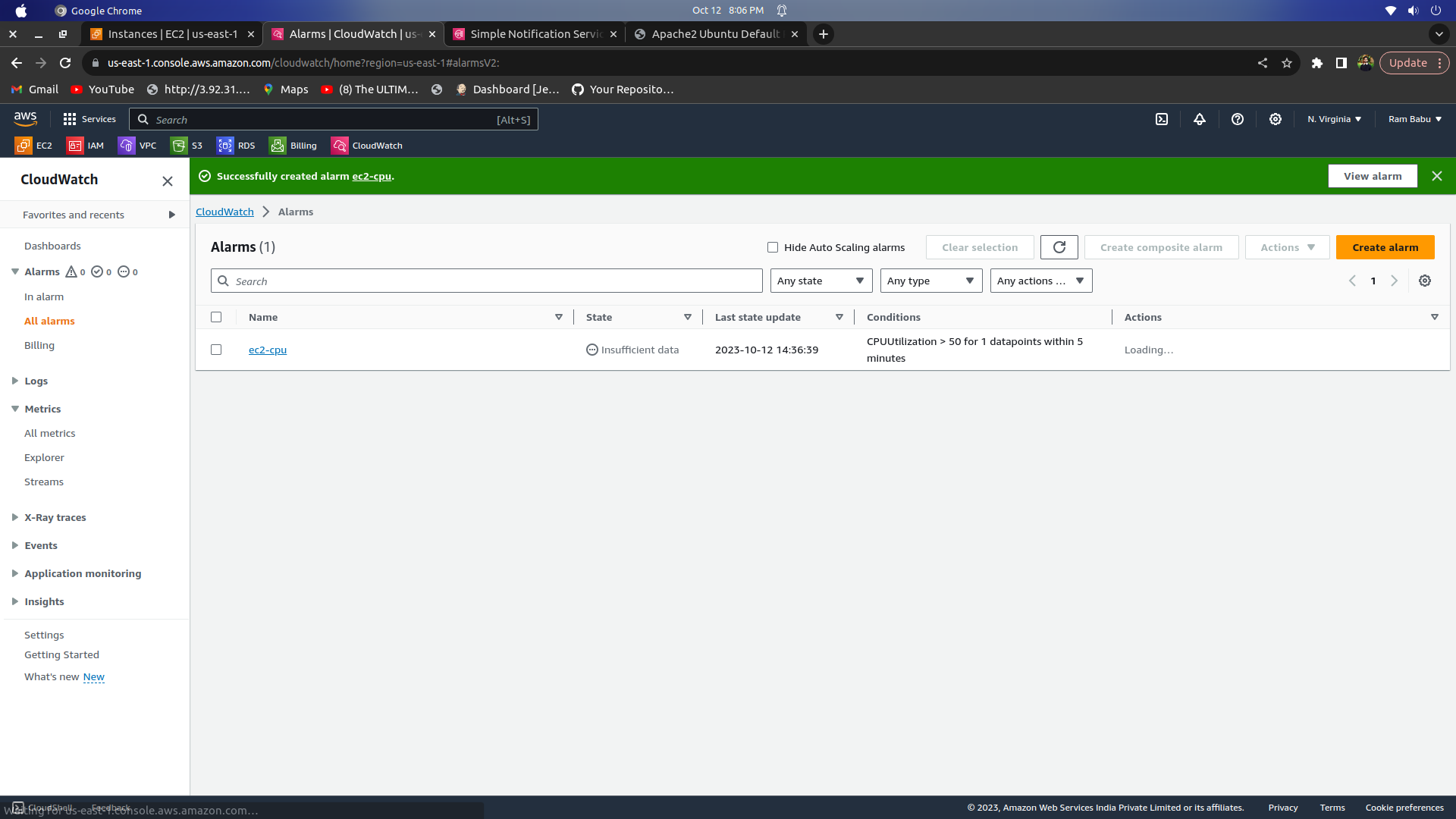
Now let us create the Alarm.
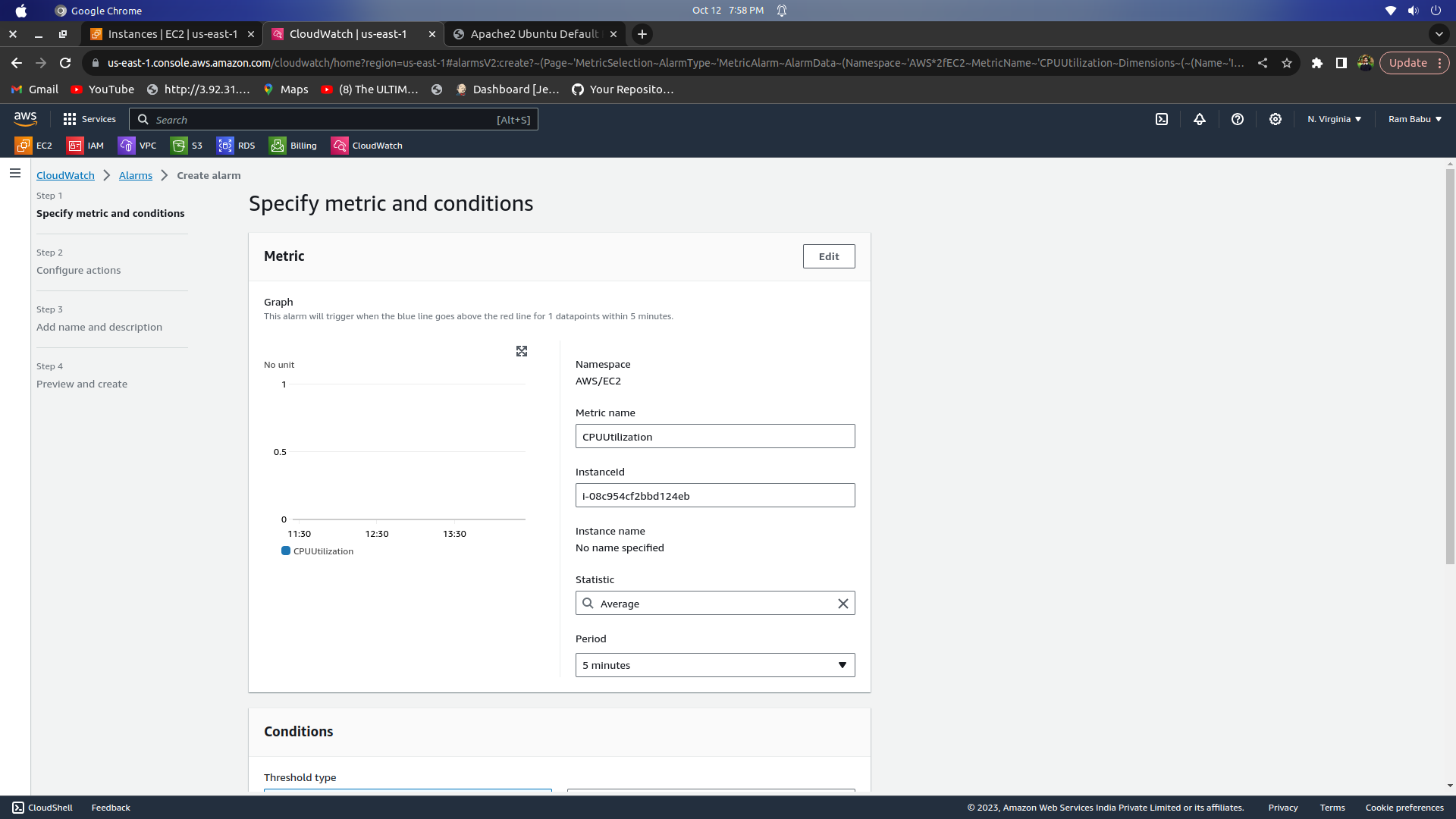
Go to Alarms > All Alarms > Create Alarm > Select Metric > Select EC2 > Select Per Instance Metrics > Select the CPU Utilization > Click on Select Metric
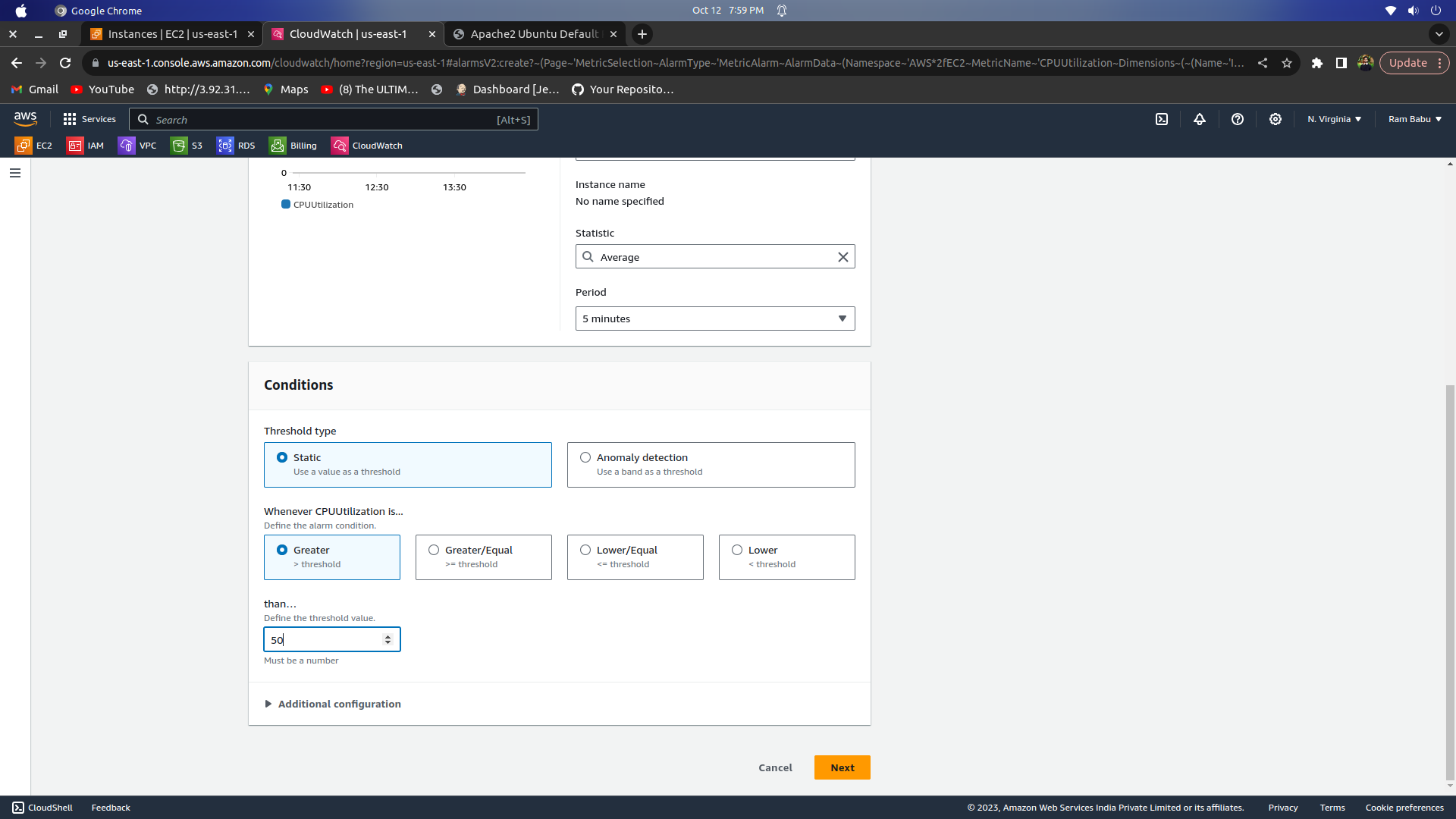
Under conditions, select the Threshold value to be greater than 50 > Click on Next.
Set up the SNS topic and create an alarm. I am naming
Task-02
Create an Auto Scaling group using the AWS Management Console and configure it to launch EC2 instances in response to changes in demand.
Use Amazon CloudWatch to monitor the performance of the Auto Scaling group and the EC2 instances and troubleshoot any issues that arise.
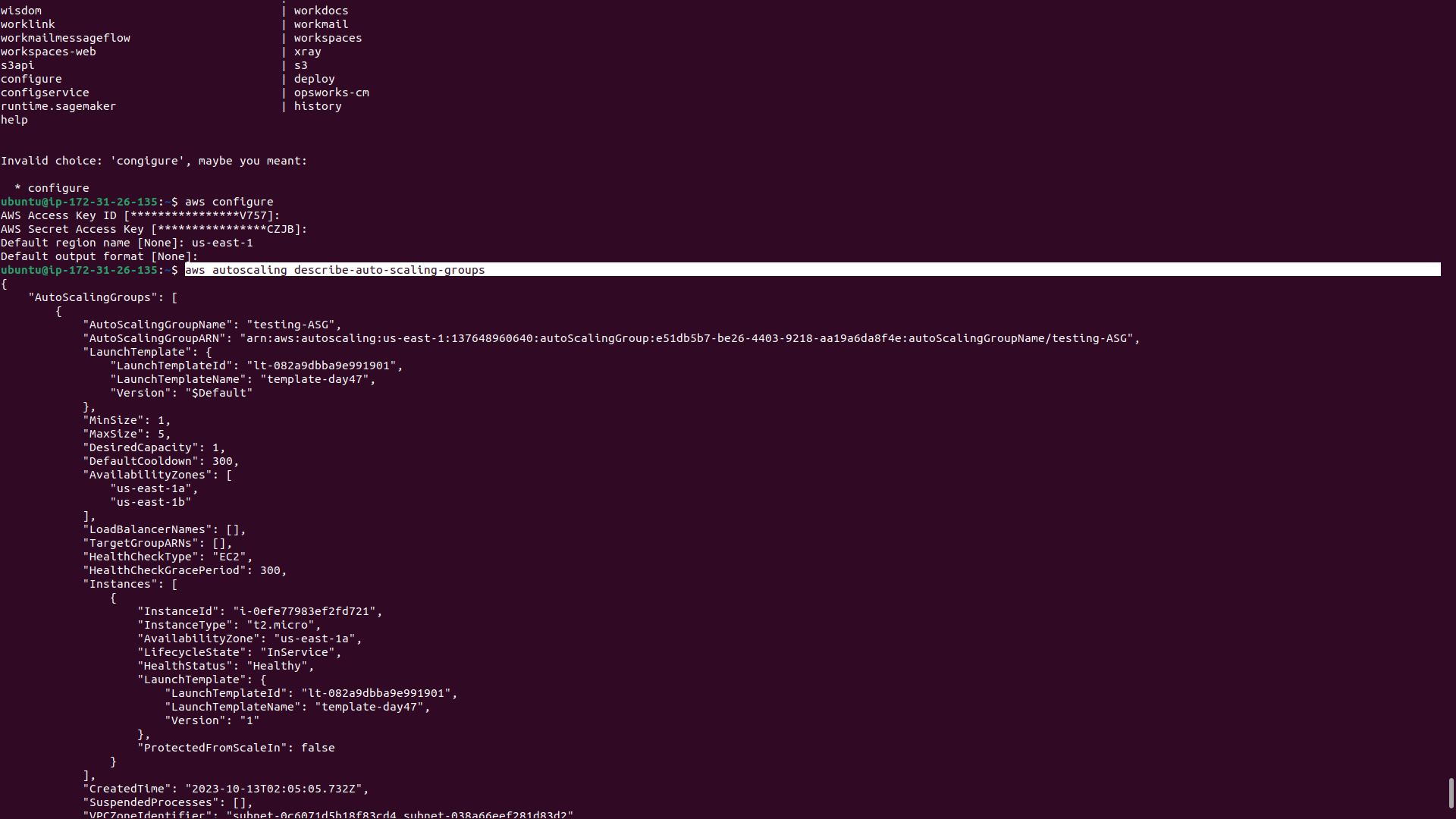
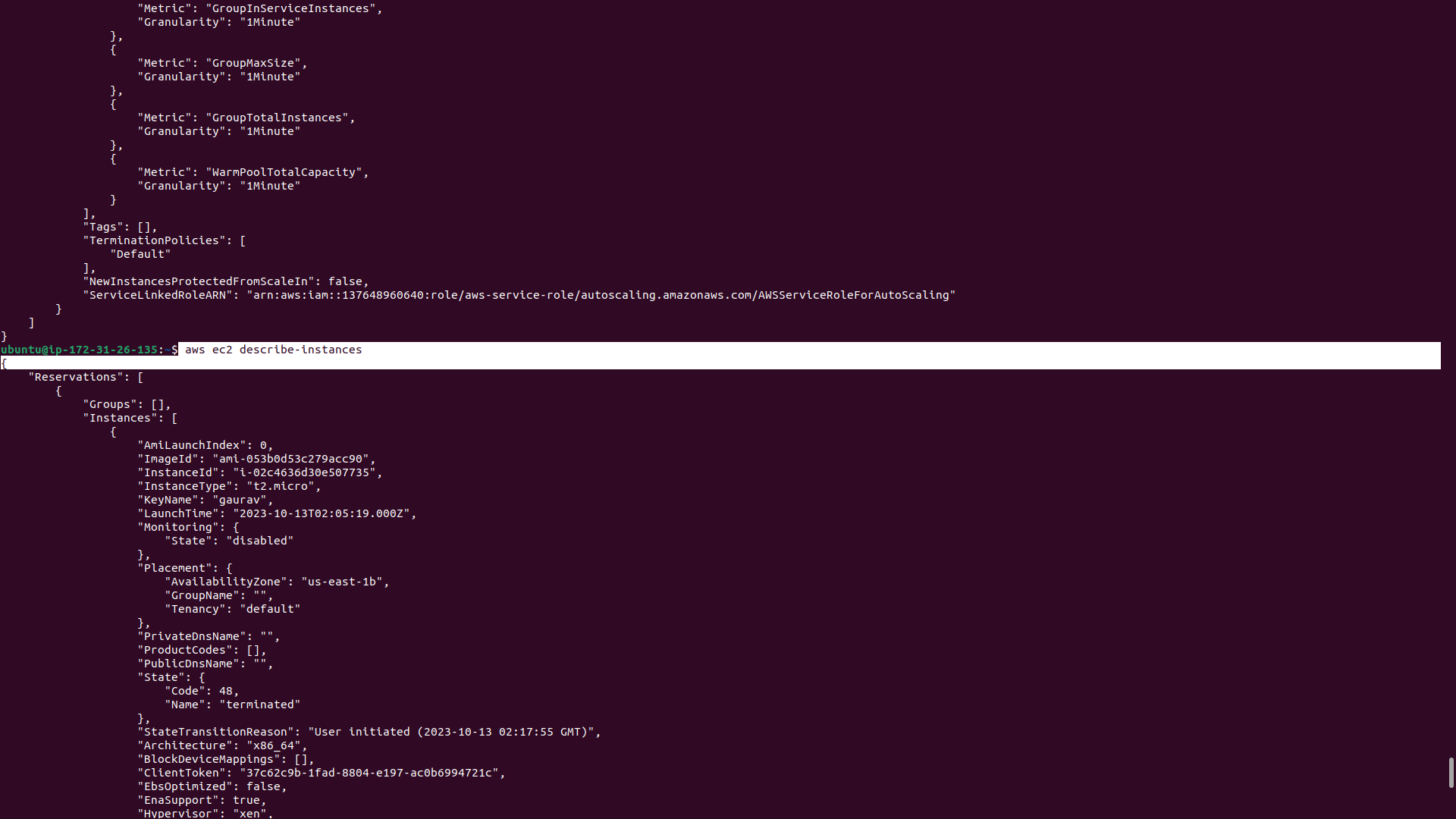
Use the AWS CLI to view the state of the Auto Scaling group and the EC2 instances and verify that the correct number of instances are running.
let's perform these task one by one
Create an Auto Scaling group using the AWS Management Console and configure it to launch EC2 instances in response to changes in demand.
make an ec2 instance with minimum specification
Go to EC2 Console > Select the EC2 Instance > Actions > Image and templates > Create a template from the instance
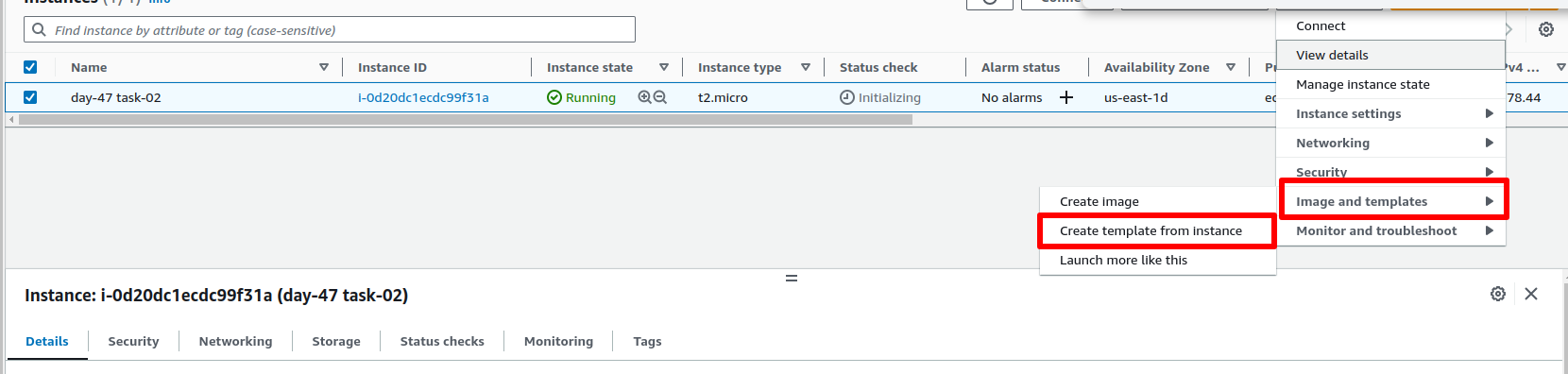
you can verify the created template in Launch Template
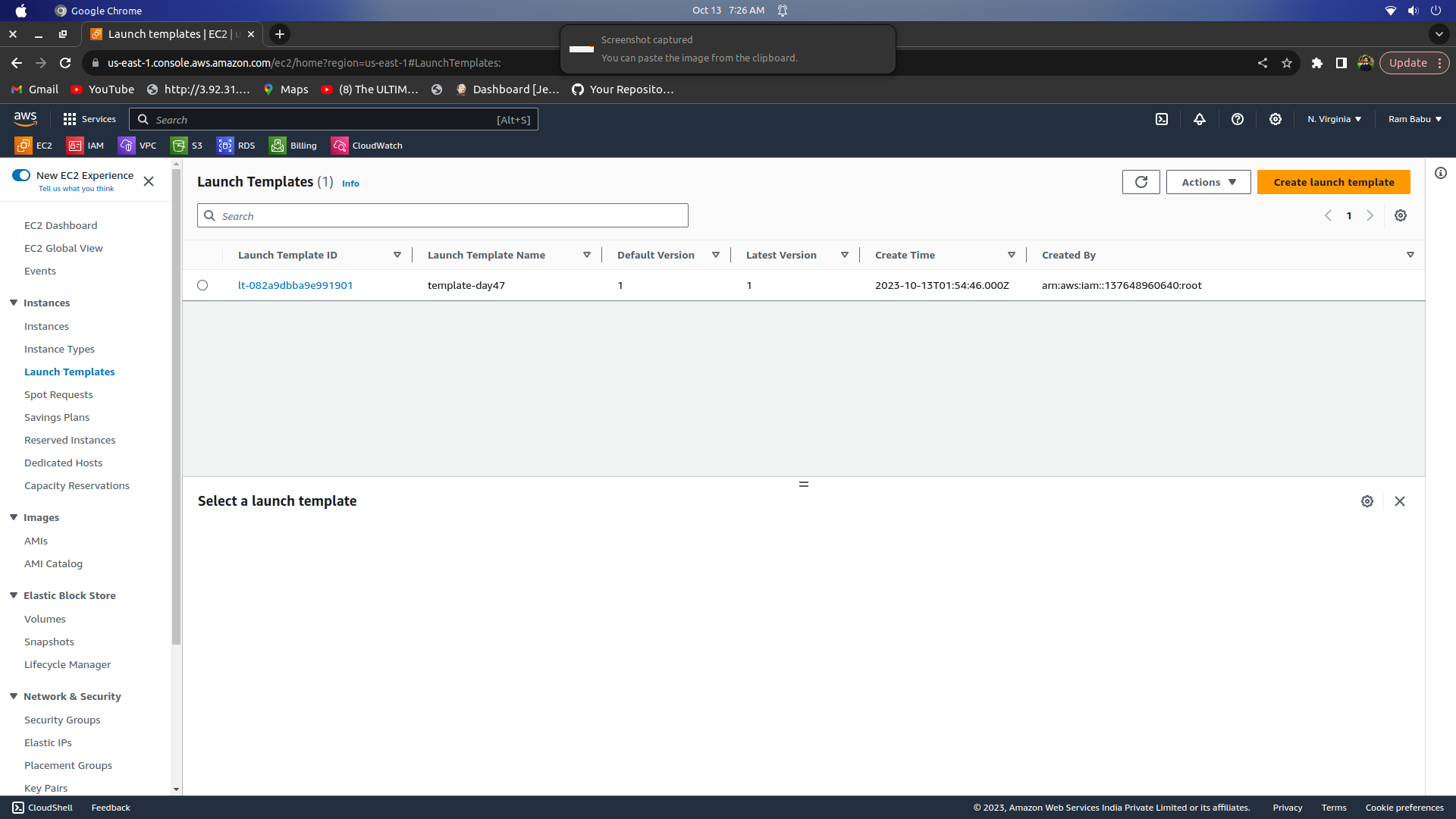
Go to your EC2 console > Under Auto Scaling > Select Auto Scaling Groups > Create Auto Scaling Groups >
Auto Scaling group name: test-ASG
Launch template: Select the launch template you created
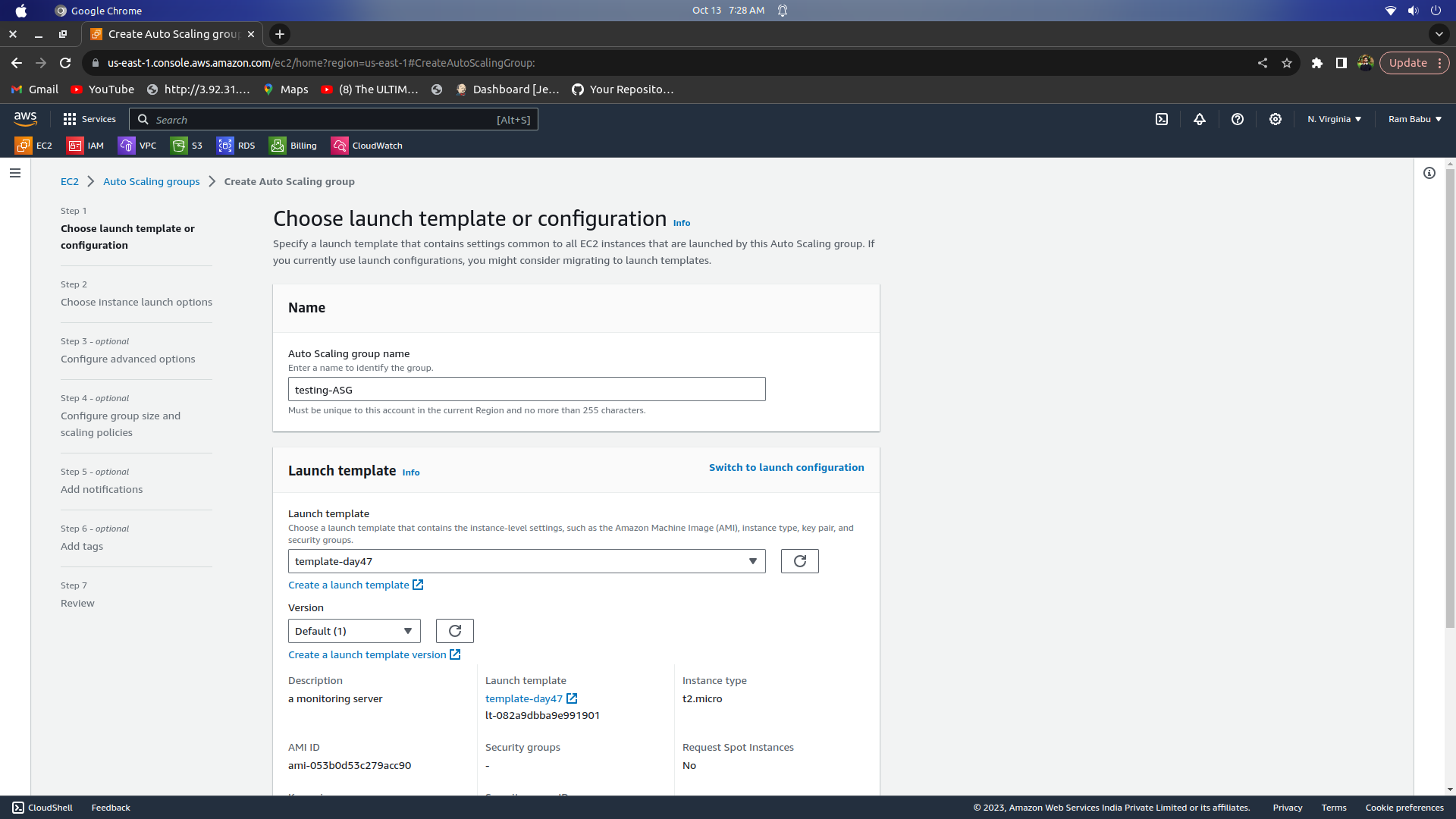
now click on next
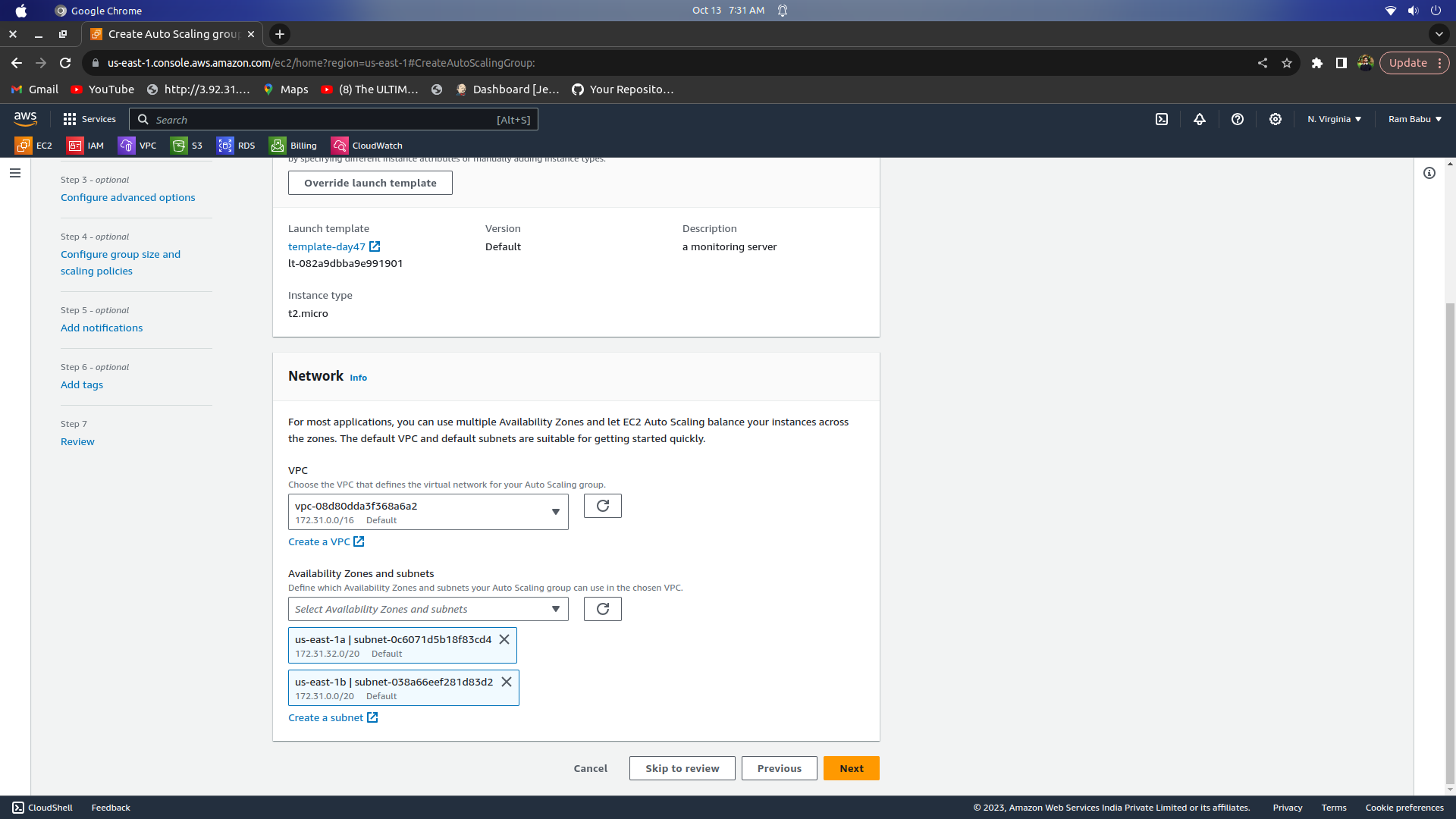
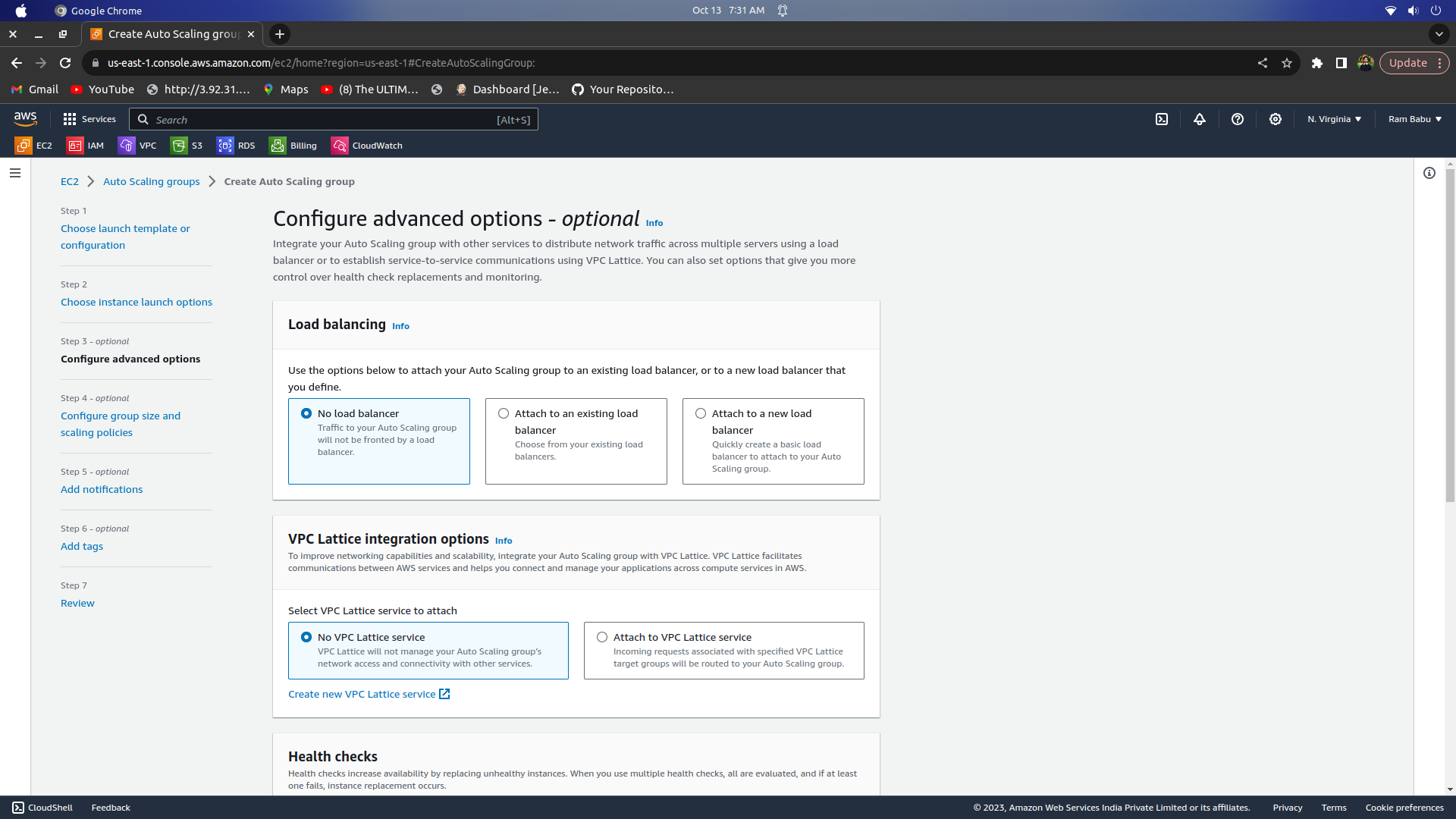
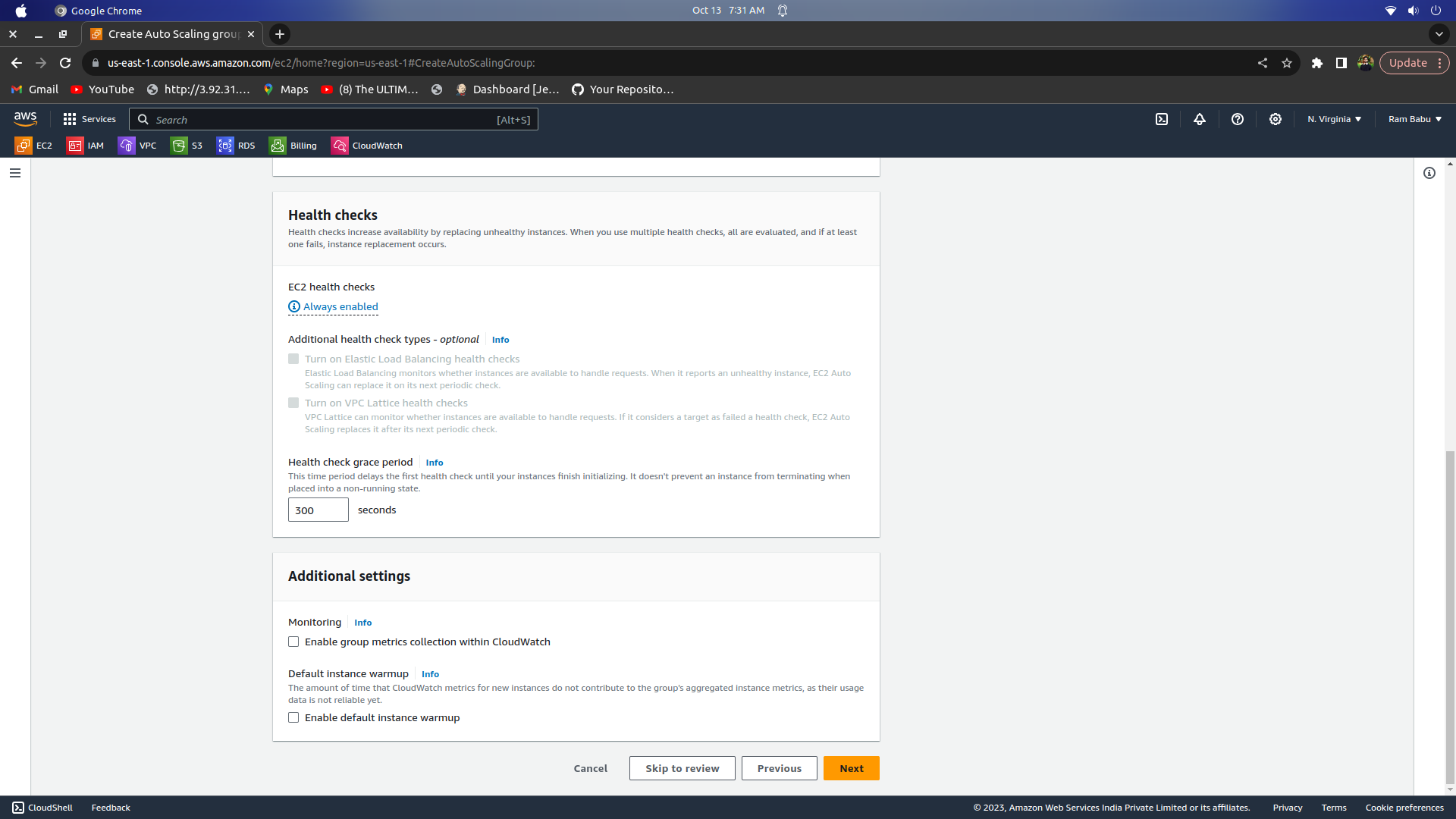
In the next section > Select a couple of availability zones > Click on Next > Enable Monitoring > Click on Next
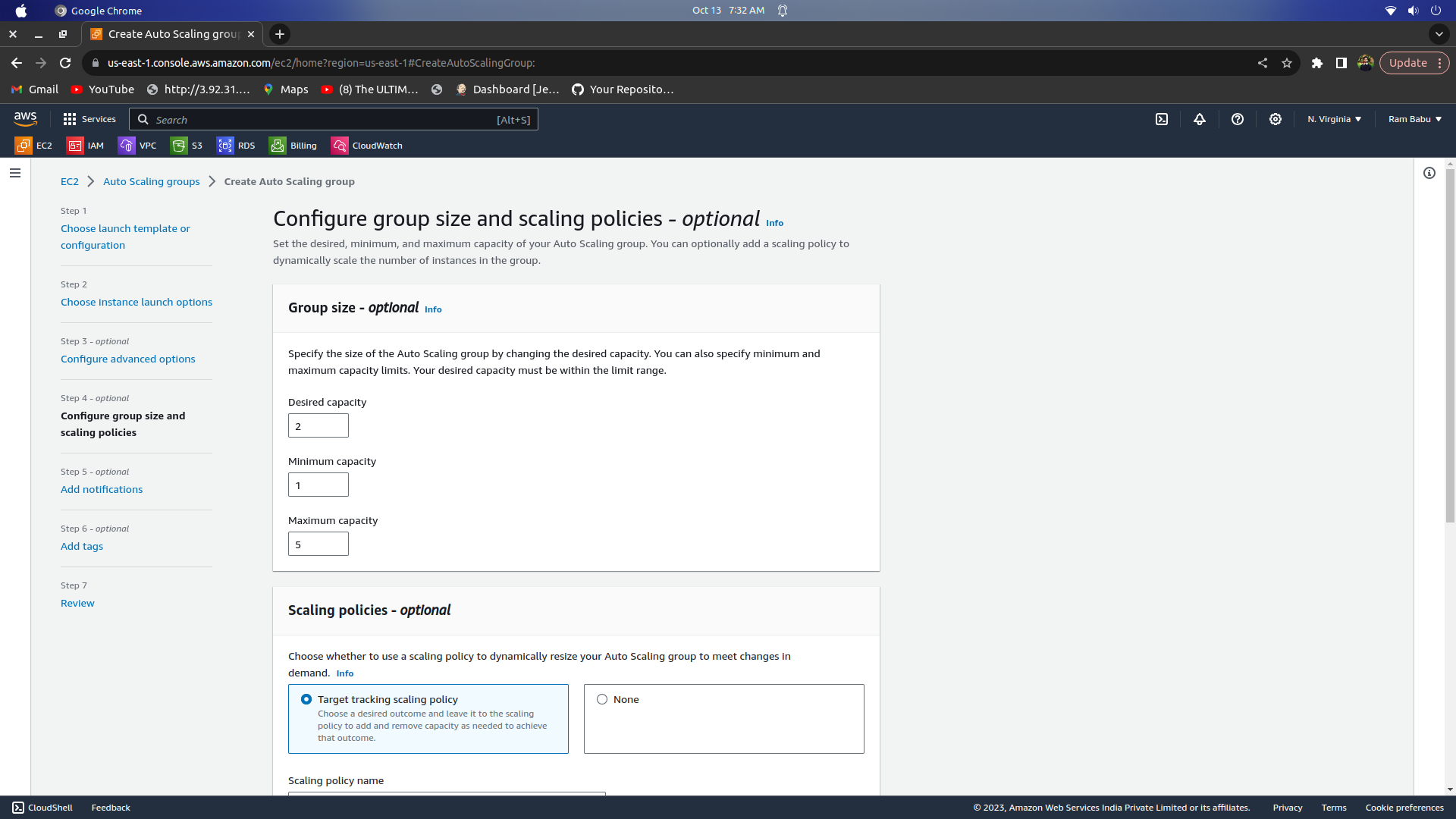
Set the Group size as per your requirement
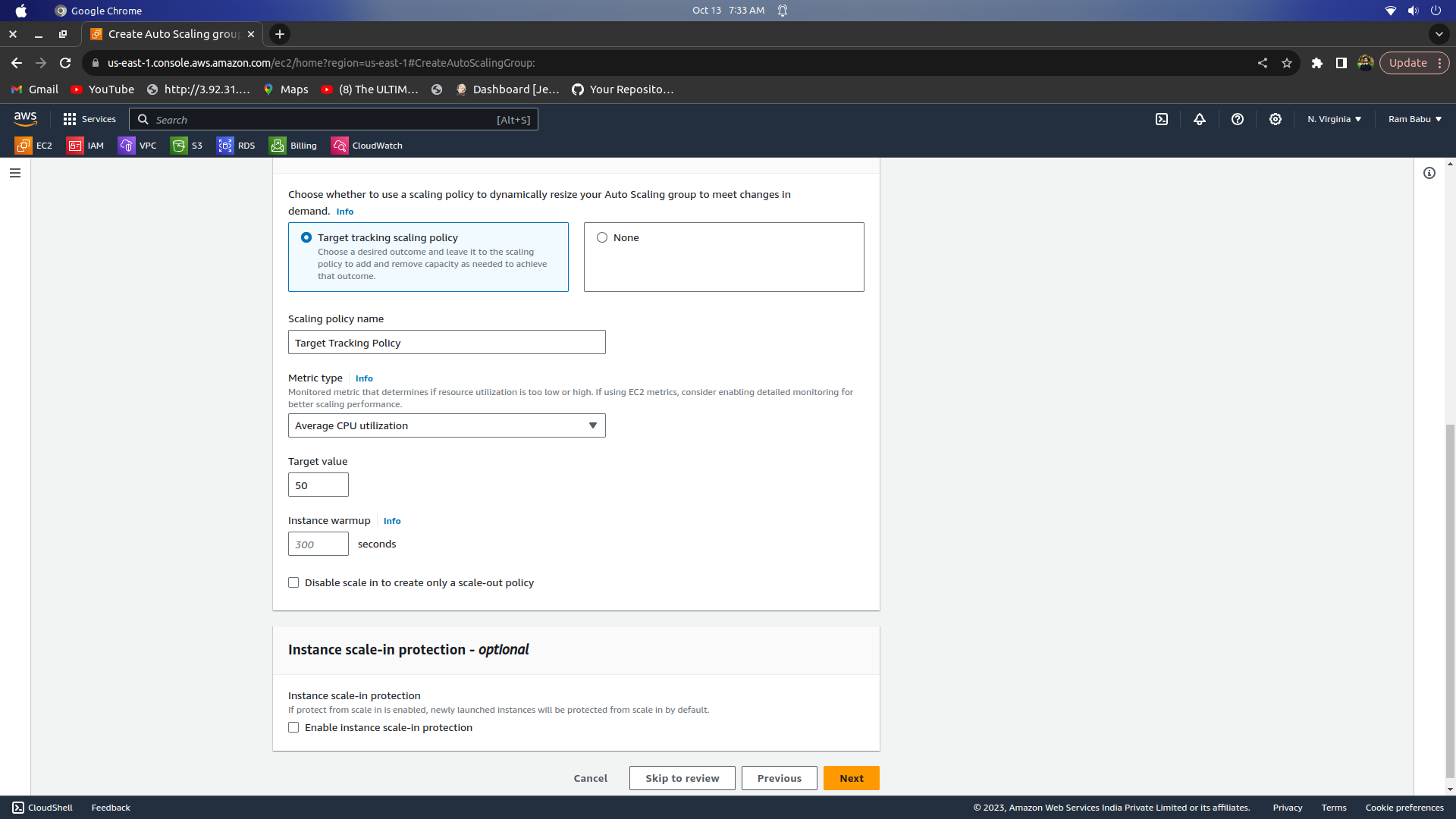
you can also add a notification that triggers at the time of scaling and a tag
Review and Create your ASG
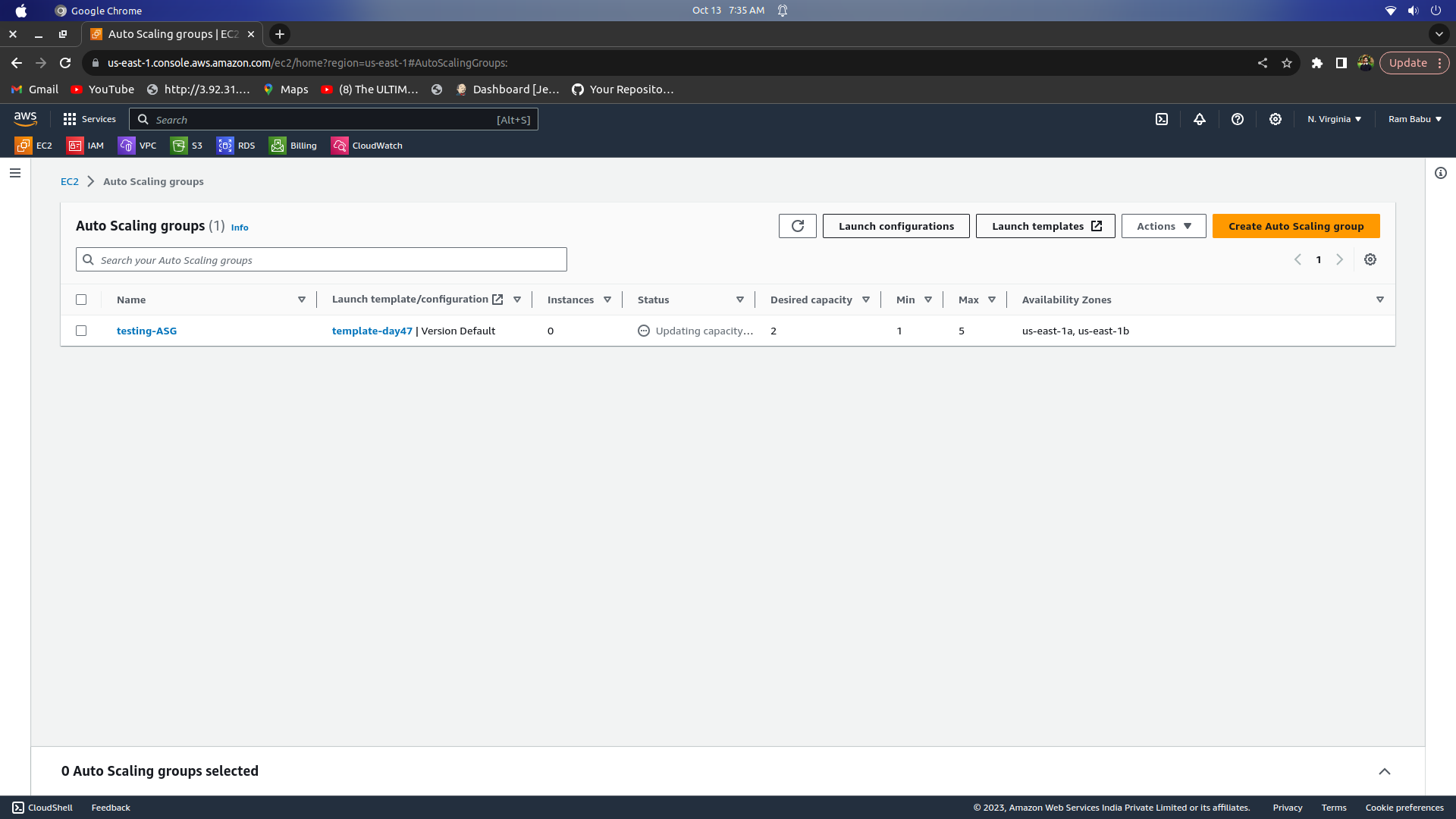
In the EC2 Instances dashboard, you can see that the number of instances has increased to three (as per your requirement).
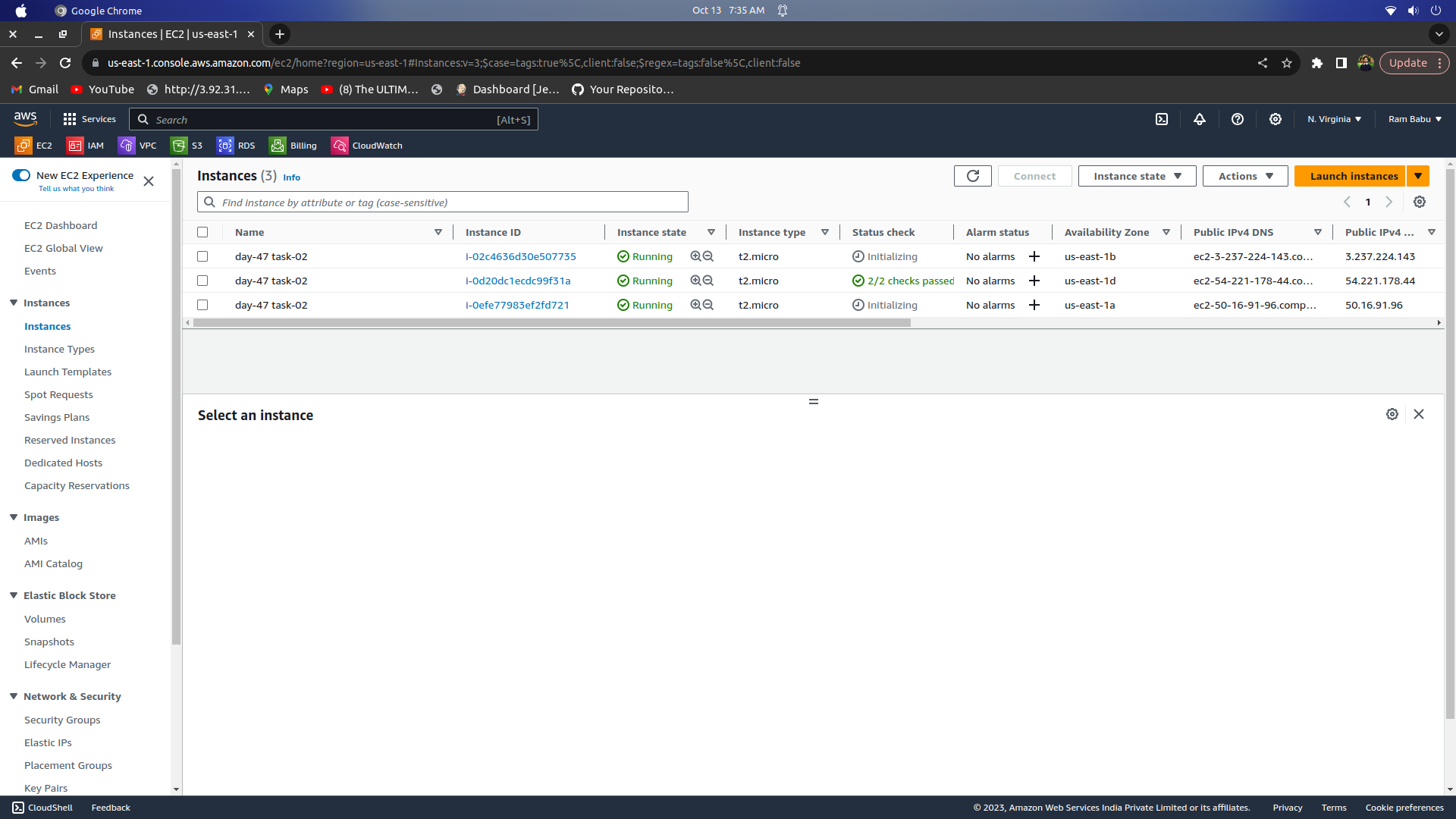
Use Amazon CloudWatch to monitor the performance of the Auto Scaling group and the EC2 instances and troubleshoot any issues that arise.
You can see that the Target tracking policy has created two more alarms:
Go to the ASG we created > Enable ASG Metric.
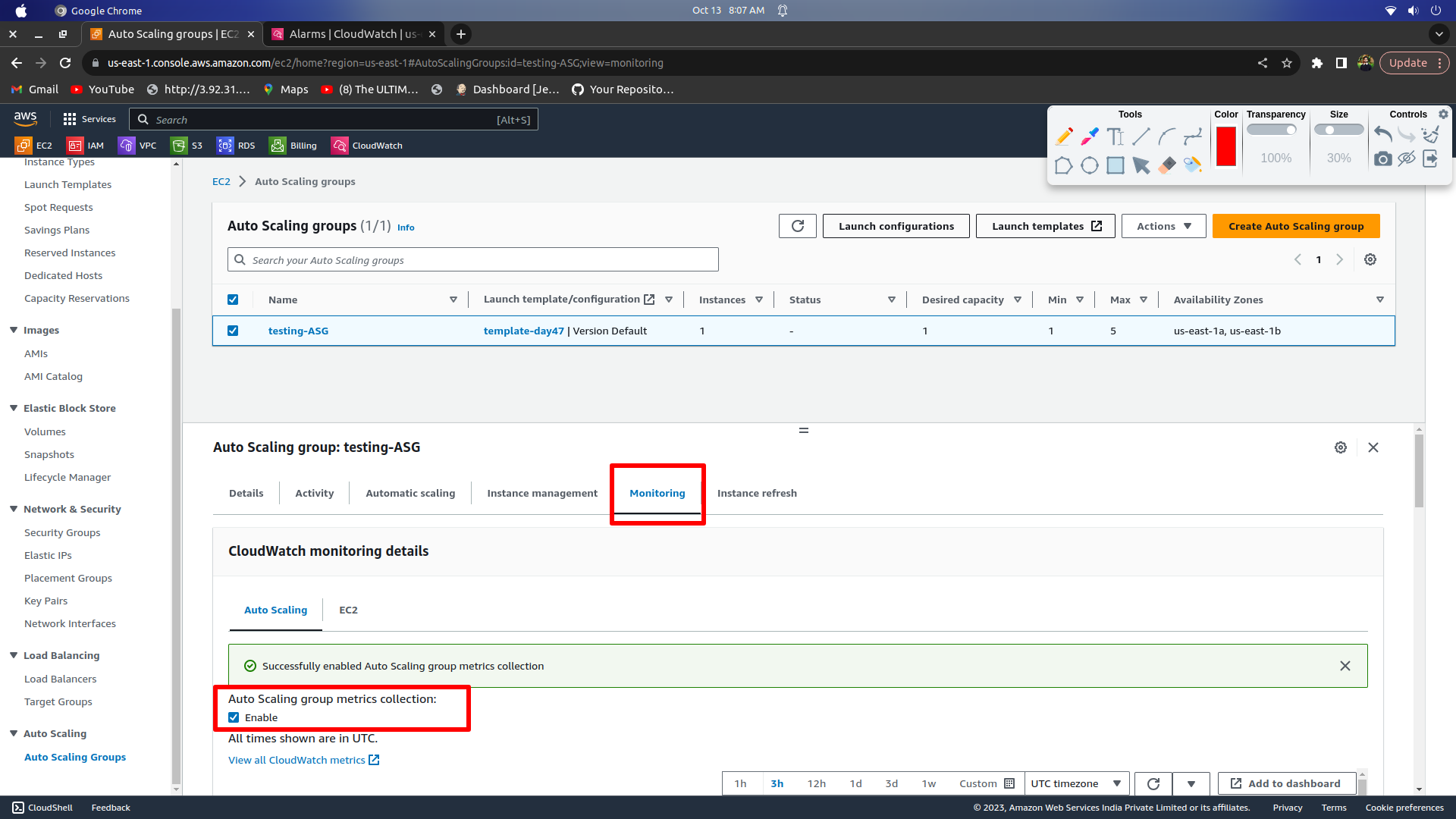
Let us create an Alarm for the same ASG.
create alarm > select matrix > auto scaling > select group > confirm matrix
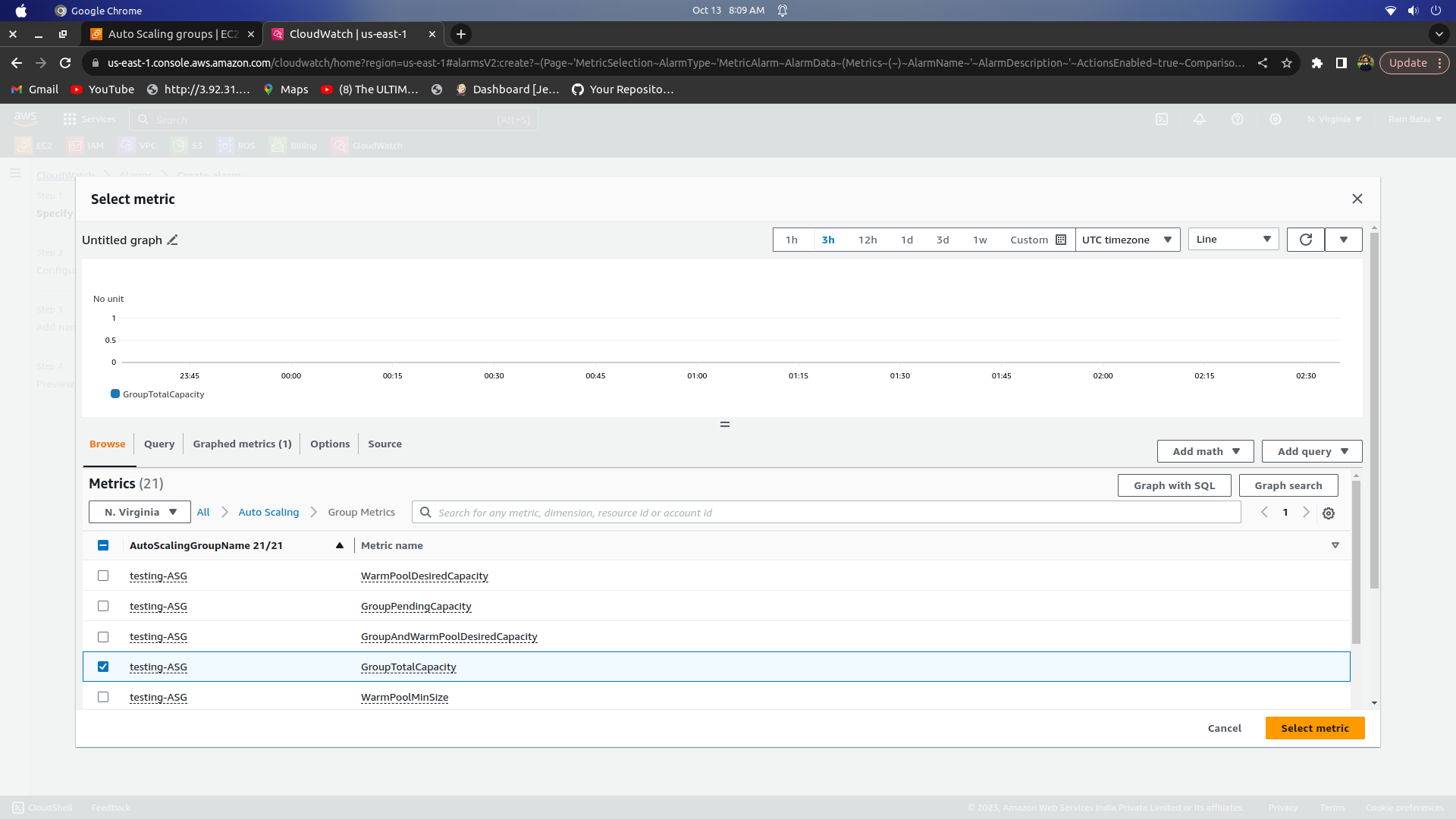
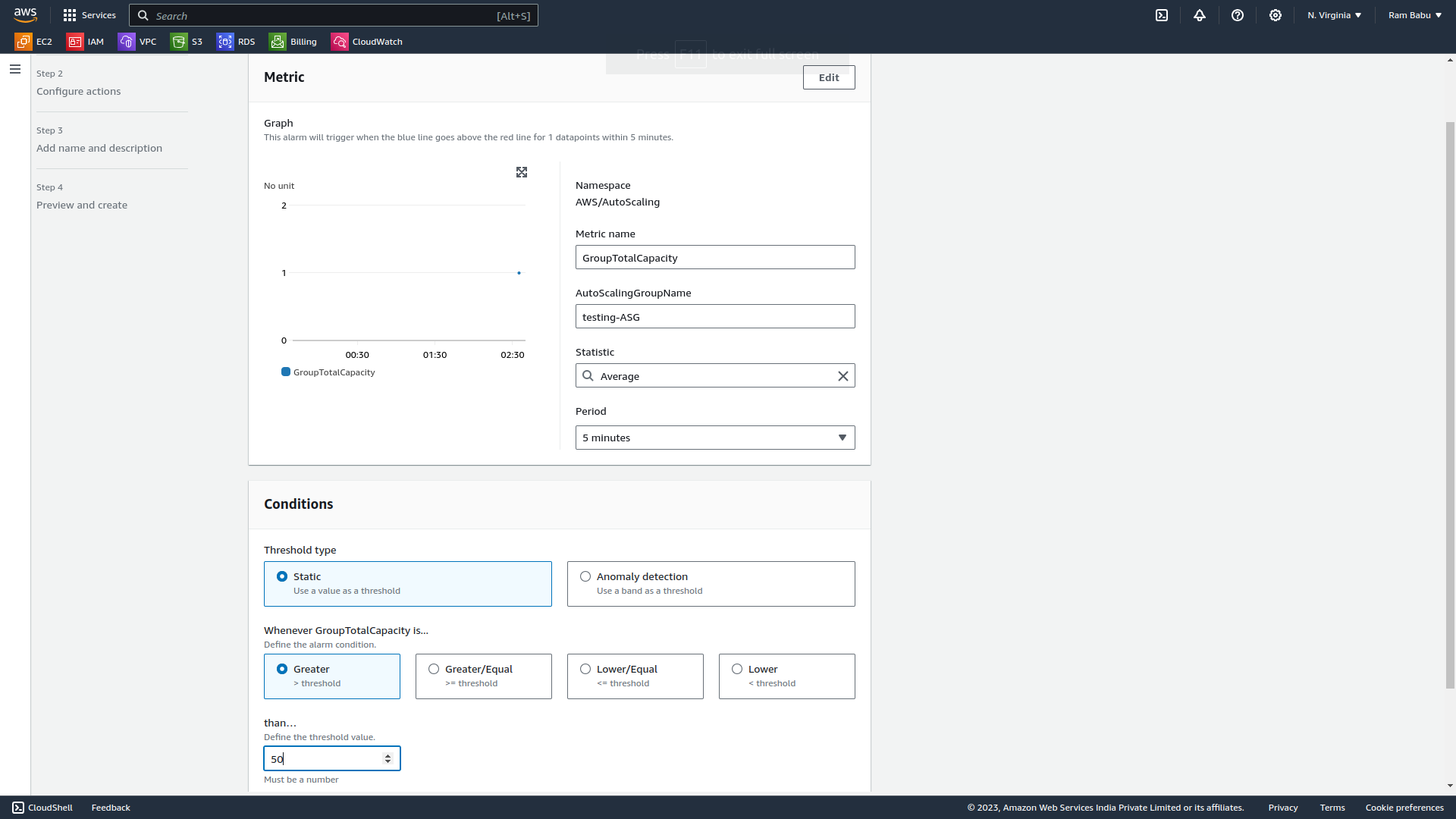
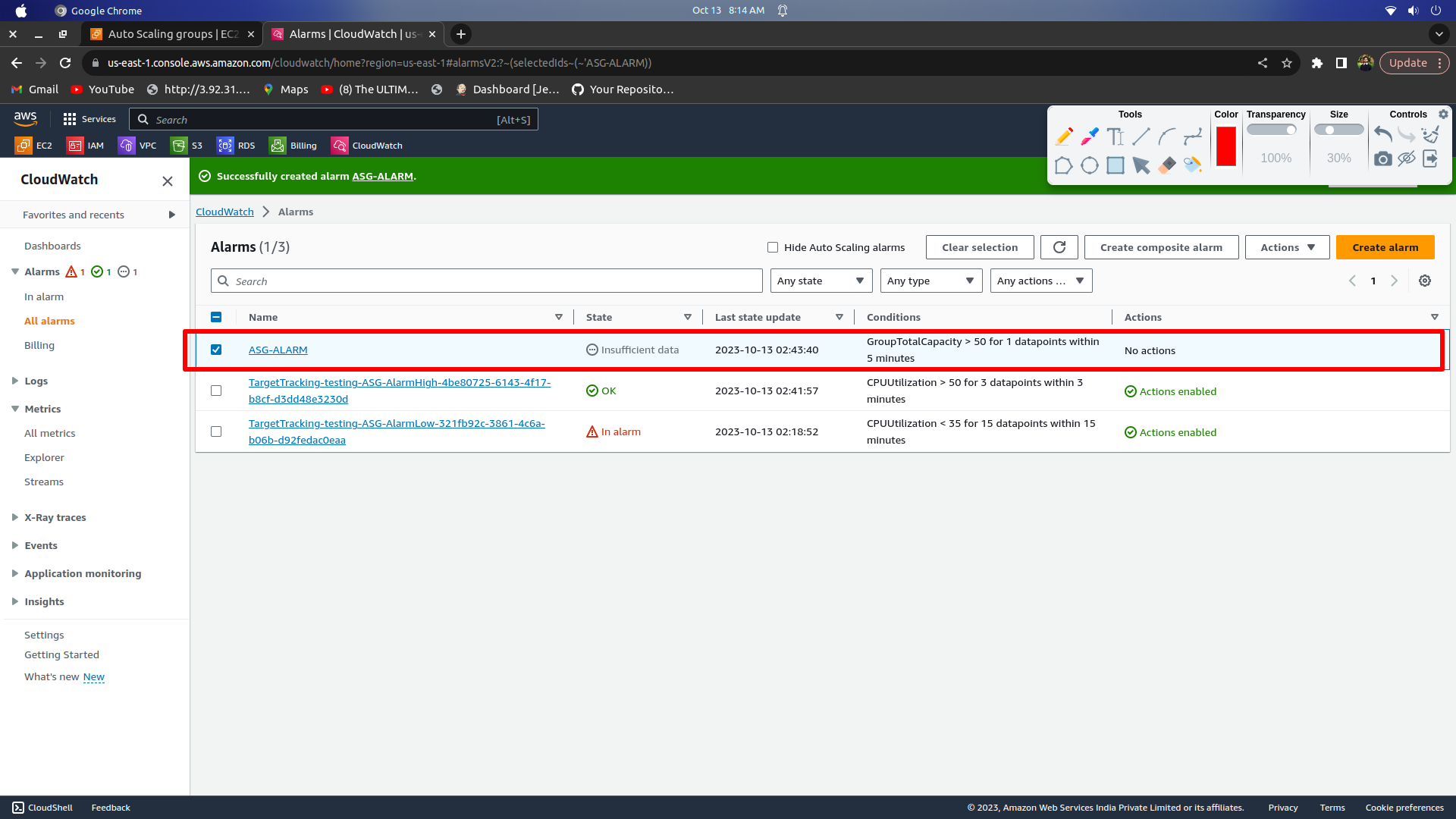
now from here we can monitor the performance of the Auto Scaling group and the EC2 instances and troubleshoot any issues that arise.
Use the AWS CLI to view the state of the Auto Scaling group and the EC2 instances and verify that the correct number of instances are running.
create a User with access to ec2 instance > then down load AWS CLI from the given command
for the creation of IAM User and AWS CLI you can follow previous blogs
update the terminal and download AWS CLI
sudo apt update
sudo apt-get install awscli
aws --version
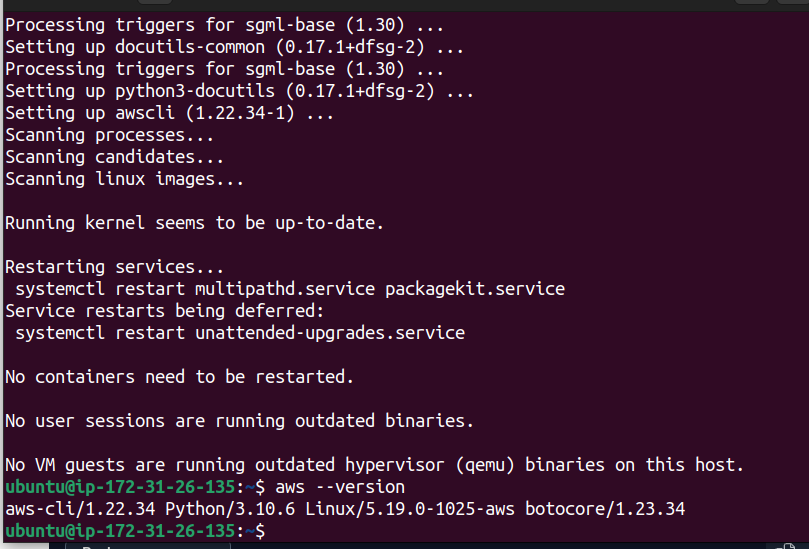
now to view the state of the Auto Scaling group and the EC2 instances and verify that the correct number of instances are running
Configure AWS CLI with access key and secret key
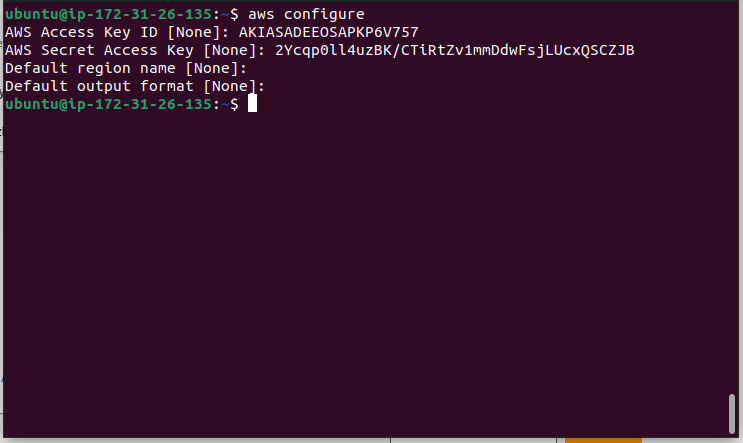
Let us see the ASGs by using the:
aws autoscaling describe-auto-scaling-groups
Let us verify the ec2 instances:
aws ec2 describe-instances
woohoo, that's all for the day
Do you like my blogging style ? please do share it your connection
thank you for being here
If you've enjoyed this article and want to stay updated on the latest in the tech world, don't forget to connect with me on GOURAV TOONWAL. Let's keep the conversation going and explore the exciting world of technology together. Follow for more insights, discussions, and tech updates.
spreading knowledge in the community ...


